TPI#
TPI → TTPIs
A TPI points to an OpenXML (.xlsx) workbook (as supported by Microsoft Excel, LibreOffice Calc, ...). It specifies a TPIStorage reference and a relative file path. The TPI controller periodically checks file reachability and reports it in .status.available.
Workbook structure#
METADATA sheet#
The first sheet in the workbook is named METADATA and contains workbook-level properties:
| Property | Description | Required |
|---|---|---|
namespace | Target Kubernetes namespace | Yes |
eda-instance | Fully qualified domain name of the EDA cluster | No |
eda-version | EDA release version | No |
tpi-app-version | TPI application version used when the workbook was exported | No |
export-timestamp | ISO 8601 timestamp when the TPI was exported | No |
tpifilter-name | Name of the TPIFilter resource used during export | No |
tpifilter-spec | JSON serialization of the TPIFilter spec used during export | No |
tpistorage-name | Name of the TPIStorage configured for export, if any | No |
tpistorage-path | Export target path configured in TPIExport | No |
tpistorage-spec | JSON serialization of the resolved TPIStorage.spec, if available | No |
Note
Non-required properties are ignored during TPI import. On export they are always written, but a value may be empty when the source is absent (for example, tpifilter-name/tpifilter-spec when no TPIFilter is configured, or eda-instance/eda-version when they cannot be discovered).
Note
The namespace field is read during TPI import and applied to all imported objects. Import will fail if the namespace value is not a valid Kubernetes namespace name.
Sheet naming#
Sheet names follow the pattern: plural(-apigroup)?(~n)?
Note
TPI uses whatever plural the active schema carries: bundled OpenAPI files encode it explicitly. When TPIExport discovers schemas from the cluster (EDA), that plural comes from each CRD's spec.names.plural, so it matches the Kubernetes API (e.g. Kind UdpProxy → udpproxies, not udpproxys). If no CRD entry is found for a kind, discovery may still fall back to lowercased Kind plus s.
Excel caps worksheet tab names at 31 characters. When an exported name would exceed that (for example, the plural plus an apigroup that distinguishes two kinds with the same plural), TPIExport shortens the tab label automatically so the file stays valid. The apigroup is trimmed first; only when even the plural on its own would not fit is the plural itself hard-truncated to 31 characters (and the apigroup dropped).
| Component | Presence | Description |
|---|---|---|
plural | Always | The API resource plural used by the schema (e.g., virtualnetworks) |
apigroup | When the plural is shared | The API group string up to but not including the first .; if the group contains no ., the full API group is used. For example core from core.eda.nokia.com, anomalies from anomalies.eda.nokia.com |
~n | Rare | If the assembled plural[-apigroup] name (after any 31-character trimming) is already taken by another sheet, ~2, ~3, … are tried in order until the tab name is unique. This can happen for two distinct kinds that share the same plural and the same apigroup (e.g. two API groups whose first dotted segment is identical). |
Examples:
virtualnetworks-- single resource type, no conflictsmtus-anomaliesandmtus-interfaces-- MTU types fromanomalies.eda.nokia.comand frominterfaces.eda.nokia.compolicydeployments-routingpolici— pluralpolicydeploymentsis unchanged; only the segment after the hyphen (from an API group such asroutingpolicies.…) is shortened so the tab stays within 31 characters.policydeployments-routingpoli~2— same full plural again; when another sheet already usespolicydeployments-routingpolici, the segment after the hyphen is shortened a bit further to leave room for~2,~3, … so the two tabs stay distinct.
Note
Sheet names are indicative. Authoritative data is stored within the first few rows of the sheet itself.
Sheet layout#
Each resource sheet follows this structure:
| Row | Content |
|---|---|
| 1 | Kind (apigroup) |
| 2 | Schema description |
| 3 | Empty separator |
| 4 to N | Hierarchical headers (merged cells) |
| N+1 | Column names (for spreadsheet filtering) |
| N+2 onwards | Data rows |
Header#
The header section uses merged cells to represent the JSON schema hierarchy. Deeper nesting levels appear in lower rows. A merged cell is thus implicitly a parent cell for all cells in the next row with columns matching its merged range. Columns may be reordered; what matters is the JSON path derived by walking from row 4 down through the merged cells.
Note
Merged cells span at most 14 columns. If a header is longer than that (typically .spec), it will be repeated in a new merged cell, prefixed by ... to indicate this is an extension of the previous header. This is purely for visual clarity (the header text is visible most of the time without horizontal scrolling).
Example: virtualnetworks sheet headers
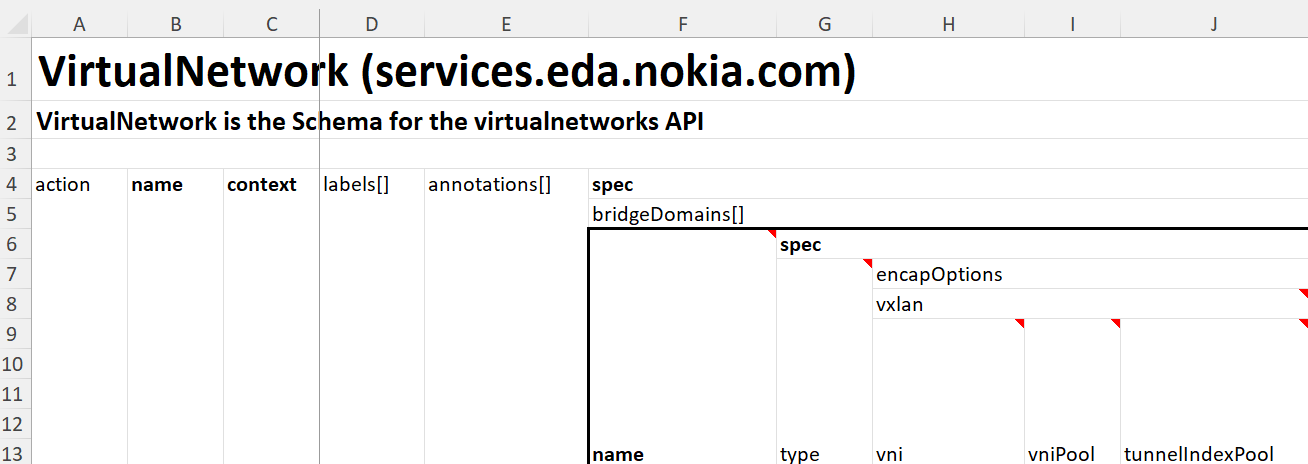
Row N+1 contains the spreadsheet column letters (A, B, …, Z, AA, AB, …) as filter labels for Excel's built-in autofilter. The autofilter is applied directly to the cell range spanning that row to the last row of the sheet.
Styling conventions:
- Bold header text: Required field; regular-weight header text: optional field.
- Header text with the suffix
(read-only)and italic gray cells in that column: schema read-only field (shown for reference, ignored onTPIImport). - Italic gray data rows on a light gray background: child resources managed by EDA (read-only; ignored on
TPIImport). - Italic blue data rows on a light blue background: object status (read-only; ignored on
TPIImport). - Vertical borders group columns that belong to the same array, with distinct border styles per array-nesting depth.
See Cell styling for more detail.
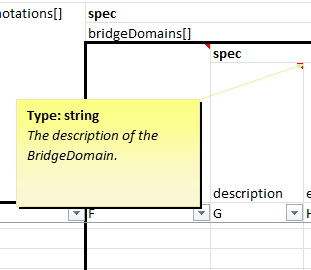
Cell comments: Every leaf field header cell contains a comment with:
- Type information (e.g.,
Type: string,Type: integer) - Allowed values for enum fields (e.g.,
Allowed values: [enable, disable]) - Field description from the schema
Common columns#
The first 5 columns are present on every resource sheet:
| Column | Required | Purpose |
|---|---|---|
action | No | Delta operation: add, update, delete, or empty to skip |
name | Yes | Resource name (metadata.name) |
context | Yes | JSON path indicating where this row's data belongs |
labels[] | No | Kubernetes labels in key=value format |
annotations[] | No | Kubernetes annotations in key=value format |
Escaping in labels/annotations: No escaping is required in labels or annotations: The = character separates key from value. As neither labels nor annotations can contain the character = in a key name, the first occurrence of = is considered to be the separator between key and value, while all subsequent = characters are literals in the value. All other characters that are usually escaped (e.g., tabs and newlines) can be entered directly in the TPI without escaping.
| Cell Value | Parsed Key | Parsed Value |
|---|---|---|
app=nginx | app | nginx |
equation=mc2=physics | equation | mc2=physics |
Projection model#
TPIs are spreadsheet workbooks which, for our purposes, represent an aggregated set of EDA Custom Resources (CRs) and an optional action for each of them. EDA CRs are structured text data, defined by JSON schemas embedded in Kubernetes Custom Resource Definitions (CRDs). While spreadsheets contain tabular data, CRDs often model deeply nested object structures. Consequently, storing CRs in spreadsheets requires defining a projection model to convert between the JSON representation of objects and their tabular representation in a spreadsheet.
Objects (EDA CRs) are grouped by their type (i.e., API Group and Kind). Within a TPI, each worksheet (tab) in a workbook contains objects of a single type. The first few rows of each sheet contain metadata that describes the object type, and column headers that indicate the mapping between columns and object properties.
The data itself uses a projection model tracking the context each row's content pertains to:
- A
namecolumn identifies the object (EDA CR). - A
contextcolumn indicates which nested path the row populates. - Primary keys link rows together to reconstruct objects.
Note
The columns forming primary keys vary depending on the context.
Problem statement#
A single Kubernetes object often contains multiple lists. A VirtualNetwork, for example, can have several bridge domains and several IRB interfaces. In a spreadsheet you can only write one row at a time, so each row needs to say: "I am adding an entry to this particular list."
apiVersion: services.eda.nokia.com/v2
kind: VirtualNetwork
metadata:
  name: ipvrf1-vnet
  labels:
    eda.nokia.com/app1: app1
spec:
  bridgeDomains:
    - name: ipvrf1-bd-220
      spec:
        type: EVPNVXLAN
        eviPool: evi-pool
        encapOptions:
          vxlan:
            vniPool: vni-pool
            tunnelIndexPool: tunnel-index-pool
    - name: macvrf-300
      spec:
        type: EVPNVXLAN
        eviPool: evi-pool
        encapOptions:
          vxlan:
            vniPool: vni-pool
            tunnelIndexPool: tunnel-index-pool
  irbInterfaces:
    - name: irb-ipvrf1-bd-220
      spec:
        bridgeDomain: ipvrf1-bd-220
        router: ipvrf1
        ipAddresses:
          - ipv4Address:
              ipPrefix: 10.10.220.1/27
              primary: true
          - ipv4Address:
              ipPrefix: 10.10.220.2/27
              primary: false
          - ipv4Address:
              ipPrefix: 10.10.220.3/27
              primary: false
          - ipv4Address:
              ipPrefix: 10.10.220.4/27
              primary: false
  routers:
    - name: ipvrf1
      spec:
        routerID: 100.0.0.1
        eviPool: evi-pool
        bgp:
          enabled: true
          autonomousSystem: 65001
Context and primary keys#
A context tells the TPI which list a row belongs to. Every resource type in a TPI spreadsheet has one or more lists (e.g. bridge domains, IRB interfaces), and each row must declare which list it is adding an entry to. That declaration is the context column.
Context column#
Every data row has a context cell. Its value is a dot-separated path that points to the list you are populating:
| Context value | Meaning |
|---|---|
. | The object itself (top-level fields only) |
.spec.bridgeDomains | An entry in the bridge domains list |
.spec.irbInterfaces | An entry in the IRB interfaces list |
.spec.irbInterfaces.spec.ipAddresses | An IP address inside a specific IRB interface |
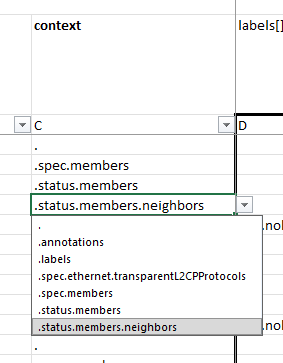
The context dropdown in the spreadsheet shows all valid context values for the sheet's resource type, so you do not need to construct these paths by hand.
Primary keys#
When a list contains entries that themselves have nested lists, the TPI needs a way to know which parent entry a deeper row belongs to. It does this through primary keys.
Consider a VirtualNetwork with two IRB interfaces, each having its own IP addresses. The spreadsheet might look like:
| action | name | context | irbInterfaces[].name | ipAddresses[].ipv4Address | ... |
|---|---|---|---|---|---|
| add | vnet-1 | .spec.irbInterfaces | irb-1 | ||
| vnet-1 | .spec.irbInterfaces.spec.ipAddresses | irb-1 | 10.0.0.1/24 | ||
| vnet-1 | .spec.irbInterfaces | irb-2 | |||
| vnet-1 | .spec.irbInterfaces.spec.ipAddresses | irb-2 | 10.0.1.1/24 |
The two IP-address rows both target .spec.irbInterfaces.spec.ipAddresses, but they belong to different IRB interfaces. The TPI matches them to the correct parent by comparing the primary key column (irbInterfaces[].name): the row with irb-1 in that column is attached to IRB interface irb-1, and irb-2 to irb-2.
Rule of thumb: when you add a row for a deeply nested list, always fill in the primary key columns of every parent list so the TPI knows where to place it.
Primary keys contain values, not objects! Required object properties thus add all their own inner required values as primary keys.
Row order does not matter. Rows are associated based on matching primary key values and context paths, not their position in the spreadsheet.
Primary key discovery#
Primary keys are derived automatically from the schema. The TPI picks the identifying columns using the following priority:
- Unique-key fields -- fields the schema marks as unique identifiers (typically a
namecolumn). If present, these are always preferred. - Required leaf fields -- if there is no explicit unique-key marker, all required simple fields (strings, numbers, booleans) at that list level become primary keys.
- Deeper required fields -- if the required fields at the top level are all nested objects, the TPI looks one level deeper and applies the same rules.
Only leaf values can become primary keys. Even if a schema marks an array or object with ui-unique-key, that field is ignored for PK selection because TPI primary-key cells must contain scalar values.
In practice, most lists have a name field marked as unique key, making it the natural primary key.
Occasionally a list has nested sub-lists but no natural primary key. When this happens the TPI adds a virtual column called _id. You will see it in the spreadsheet as an integer column (0, 1, 2, ...) that distinguishes entries. Fill it in consistently so nested rows can find their parent. The _id column is for TPI bookkeeping only and is not sent to the cluster.
If a list does not have descendant sub-lists, TPI may not need to inject _id because there is no deeper child context that must be matched back to parent rows.
Example#
A VirtualNetwork sheet showing multiple contexts:
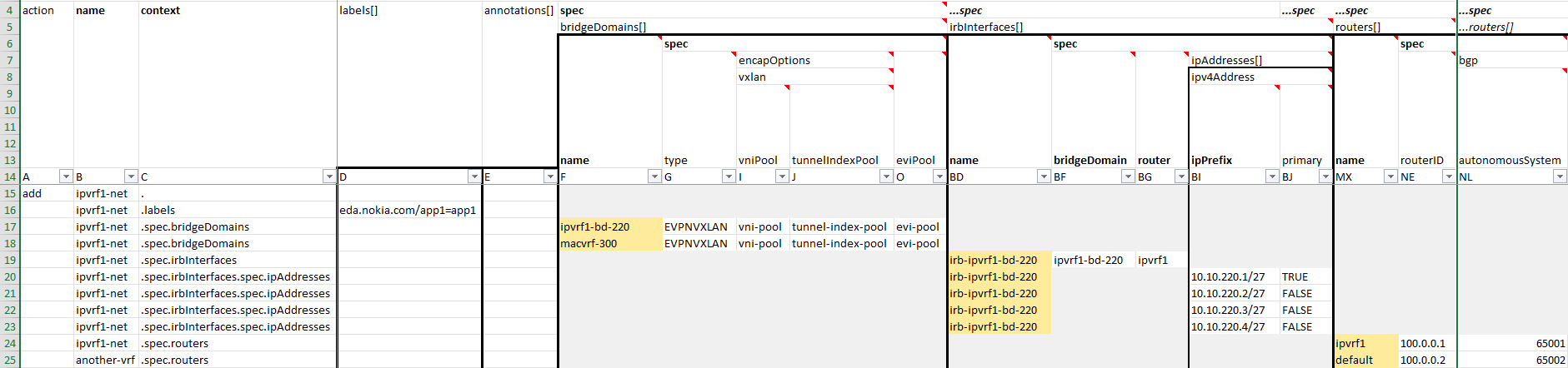
- Row 15: Context
.creates the top-levelVirtualNetworkwith aname, with actionadd. The action is only set on the root context (.) row. - Row 16: Context
.labelsadds labels to theVirtualNetwork. Note thekey=valuesyntax. - Rows 17-18: Context
.spec.bridgeDomainsadds two entries to the bridgeDomains array;name=ipvrf1-vnetlinks to the parentVirtualNetwork(i.e., this is the primary key for context.). - Row 19: Context
.spec.irbInterfacesadds an IRB interface to the sameVirtualNetwork. - Rows 20-23: Context
.spec.irbInterfaces.spec.ipAddressesadds four IP addresses to the IRB interface;irbInterfaces[].nameidentifies which interface, andnamewhichVirtualNetwork, i.e., these are primary keys of the parent context and must match across both contexts. Note that this IRB interface thus must be explicitly present in the object as well (Row 19 here, although order does not matter). It is not possible to implicitly create a parent context from the primary keys of a child. - Row 24: Context
.spec.routersadds a router entry with BGP configuration to theVirtualNetwork. - Row 25: Context
.spec.routersadds a router entry with BGP configuration to anotherVirtualNetwork, as thenamediffers.
Context path syntax#
- Paths use dot notation:
.spec.bridgeDomains - Array markers
[]are stripped from context values - Root level uses
.as the context - A cell's value applies to the context if its schema path (with
[]removed) starts with the context path
Columns to fill for a given context#
Only fill in columns that belong to the context you selected. The TPI validates this and will flag errors if you set values outside the current context.
For example, when the context is .spec.bridgeDomains:
- Fill in:
name, columns starting withbridgeDomains[].* - Leave empty: columns belonging to other lists (e.g.
irbInterfaces[].*) action: only set on the root context (.) row; leave empty for all other contexts
When the context targets a nested list (e.g. .spec.irbInterfaces.spec.ipAddresses):
- Fill in: the parent primary key(s) so the TPI can locate the correct parent, plus the columns for the nested list itself
- Leave empty: columns for unrelated lists and non-primary-key columns of the parent
Common mistakes#
| Error | Cause |
|---|---|
| missing context | The context cell is empty. Every data row needs a context. |
| missing primary key | A primary key column is empty for a row that targets a nested list. Fill in the parent's identifying column(s). |
| non-primary key is set outside of the selected context | A value is set in a column that does not belong to the chosen context and is not a primary key. Clear the cell or change the context. |
| no existing object matches all provided primary keys | The primary key values in a nested row do not match any parent row. Check for typos in the key columns. |
Array boundary rule#
Every array -- whether it contains objects or primitive values (strings, integers, …) -- defines its own context. Values in a row must not cross into a child array's context. For example, if context is .spec.routers, you cannot set spec.routers.spec.bgp.ipAliasNexthops.nextHop because ipAliasNexthops is a nested array requiring its own context.
Conditional formatting#
TPI files include conditional formatting rules that automatically change cell colors to provide visual feedback as you edit.
-
Yellow Background: Primary Keys in Valid Context. Cells in primary key columns are highlighted with a yellow background when the row's context matches the primary key's context.

This makes it easy to:
- Identify which columns serve as keys for the current context
- Ensure all required primary keys are filled when adding new rows
- Copy and duplicate primary key values when working with nested arrays
-
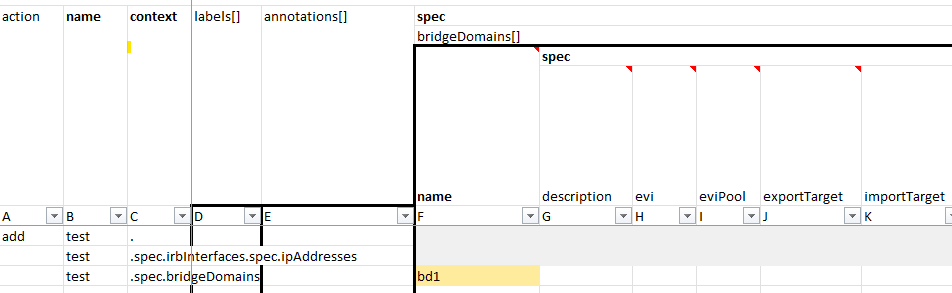
Gray Background: Not-Applicable Cells. Empty cells that belong to a different context than the current row are highlighted with a gray background. This applies to both regular data columns and primary key columns. This serves as a visual indicator that these cells should not be edited for the current row's context, helping prevent accidental data entry in the wrong context.
-
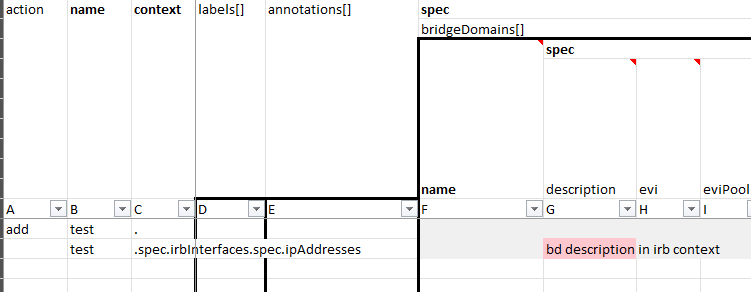
Red Background: Unexpected Data. Cells are highlighted with a red background when they contain data but:
- The cell belongs to a different context than the row's current context (applies to both regular columns and primary keys), or
- The row has no context set at all
This helps prevent common mistakes such as:
- Filling in fields at the wrong context level
- Leaving data in cells when changing a row's context value
- Mixing data from different array boundaries
- Adding data without setting a context
-
Light Blue Background: Status Columns. Cells in status columns are highlighted with a light blue background. This provides a clear visual distinction for read-only status data exported from the cluster, making it easy to identify which columns contain status information versus configuration data.
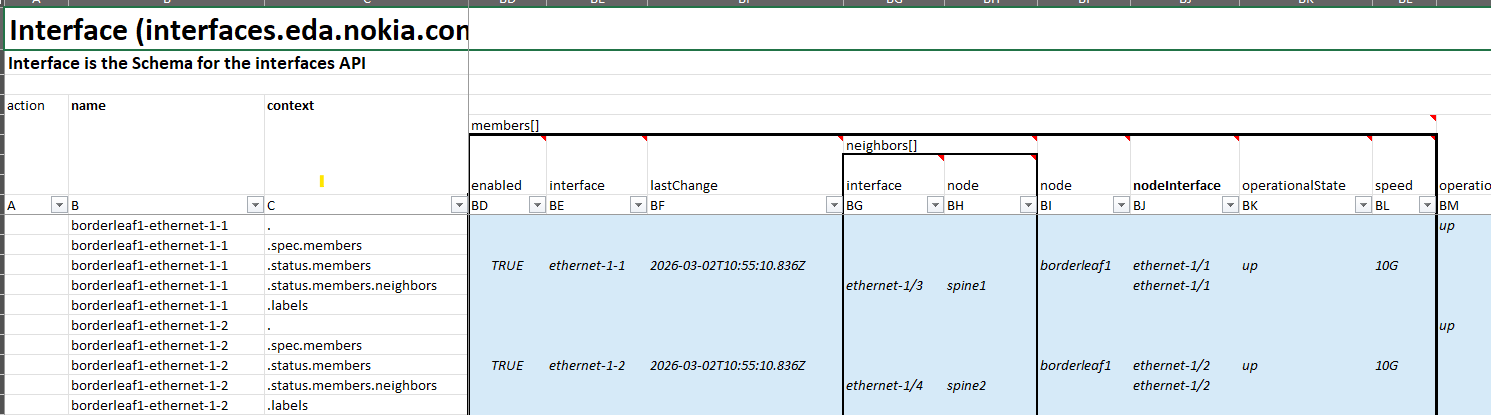
Example: If you set context to .spec.bridgeDomains, columns belonging to .spec.irbInterfaces (including primary keys like irbInterfaces[].name) will have a gray background (as a visual guide). If you then enter data in those gray cells, they will immediately turn red, indicating the data is invalid for the selected context.
These are preventive visual aids
Type validation (e.g., text in an integer field) cannot be performed via conditional formatting and will only be caught during import validation.
Type validation#
Where possible, there are data-validation rules that help to fill the TPI correctly (e.g., dropdown lists for enumerated values). However, these are not exhaustive and cannot cover all schema constraints.
Conditional formatting rules cannot validate cell values against schema types (e.g., detecting text in an integer column).
This implies that for a TPI to be valid, it must be processed by the TPIImport workflow (or one of its derivatives).
Cell styling#
- Bold headers are required fields; regular-weight headers are optional.
- Italic gray rows are child resources managed by EDA -- they are read-only and ignored on import. On export, child resources are omitted unless Include child resources is enabled; if you filter to kinds where every instance is only a child resource, the sheet can be empty.
- Italic gray cells in columns labeled
(read-only)are schema read-only fields shown for reference. - Italic blue rows contain status data -- also read-only.
- Vertical borders group columns that belong to the same array.
Cell comments#
Every column header for a leaf field has a comment (hover over the header to see it) containing:
- The field type and allowed values
- Min/max or length constraints when applicable
- The field description from the schema
If a field is marked read-only in the schema, the visible header text includes (read-only).
Locked objects#
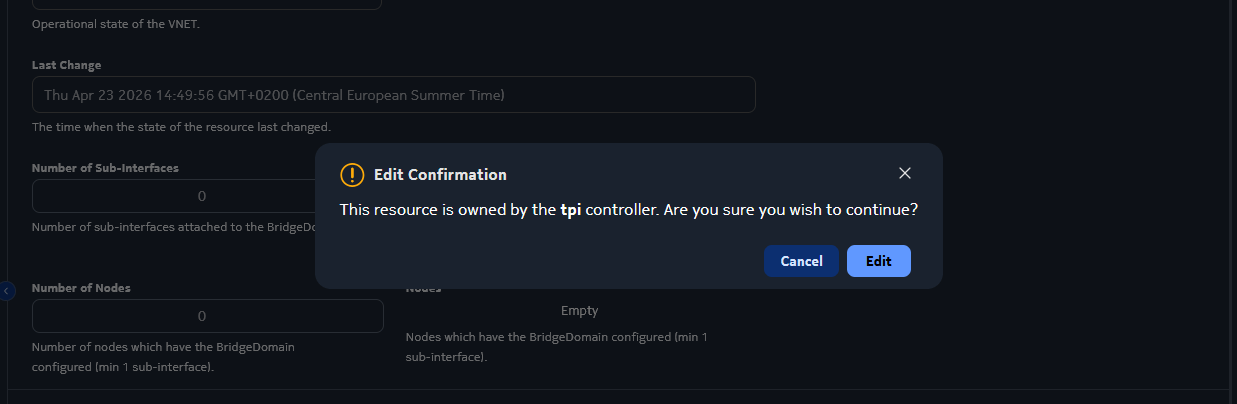
TPI can mark imported objects as externally managed via spec.lockObjects. Objects touched by that import (with add or update action) are labeled with eda.nokia.com/controller=tpi. The EDA UI displays a warning on those objects, preventing accidental in-UI edits that would diverge from the TPI-managed state.
Editing#
TPI files include several built-in helpers that guide data entry and help catch mistakes early.
Drop-down menus#
Cells with constrained values offer drop-down menus:
- Context: Select a valid context path from the list -- only paths that are valid for the sheet's resource type are shown.
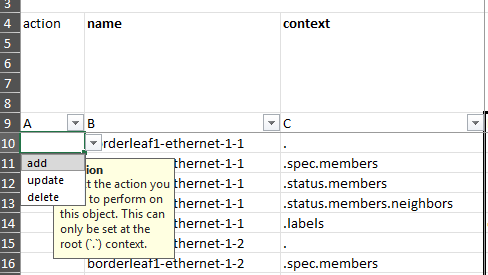
- Action: Choose
add,update, ordelete. Only root rows (context.) can have an action; nested rows leave this blank.
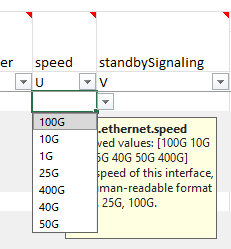
- Enum fields: Fields with a fixed set of allowed values (e.g.,
enable/disable) show a drop-down with those options.
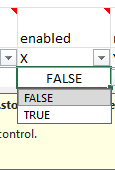
- Boolean fields: Show a
TRUE/FALSEdrop-down.
Input prompts#
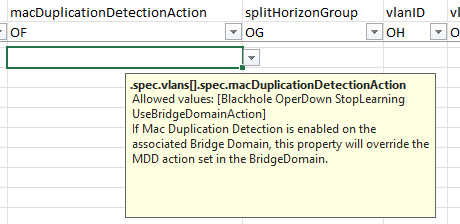
When you select a cell in a validated column, a prompt appears with the field name, type, constraints (min/max, length), and description. This is a quick reference without leaving the spreadsheet.
Navigation#
Navigation pane#
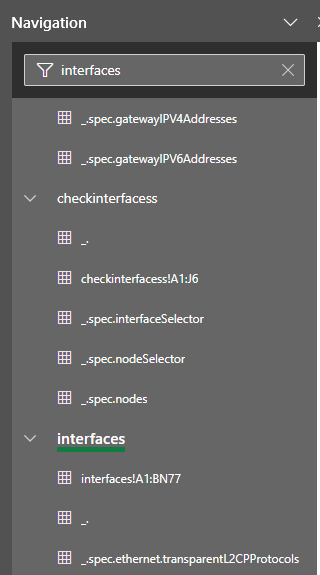
Excel's Navigation pane (View → Navigation) lists all sheets and their named ranges in one place. This is particularly handy when the TPI covers many resource types and the worksheet tab bar becomes crowded: click any sheet or named range in the pane to jump there instantly. You can also type part of the sheet name to filter the displayed list.
Remember that sheet names are linked to API object plurals from schemas/resource definitions (see Sheet naming).
Named ranges#
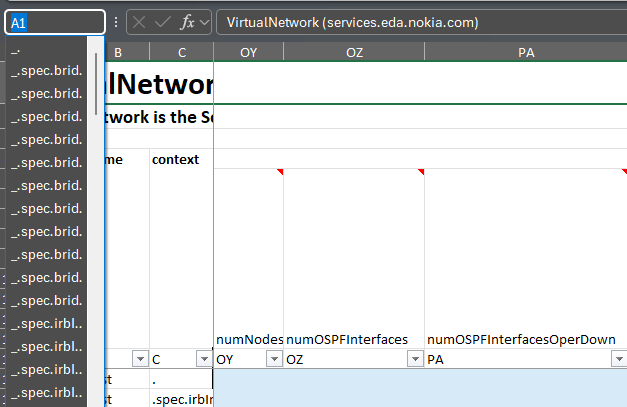
When a TPI is exported, every context gets a named range assigned within that worksheet, where the range name is the context prefixed with an underscore (e.g., _.spec.bridgeDomains). The named range refers to the columns that belong to that context on the currently active row.
Type the name in Excel's Name Box (top-left, usually shows the cell address) and press Enter to jump directly to the columns for that context on the active row. This is especially useful on wide sheets.
Auto filter#
The row just below the headers acts as an autofilter bar. Use it to show only rows with a specific context, name, or any other column value. You can also use it to sort rows.
Frozen panes#
The action, name, and context columns and all header rows are frozen. You can scroll freely in both directions without losing track of which row or column you are editing.
Dependencies#
The TPI resource has no dependencies on other EDA resources.
Referenced resources#
A TPI references a TPIStorage via spec.storage; the file at spec.path is downloaded from (and, for exports, uploaded to) that storage.
Examples#
Custom Resource Definition#
To browse the Custom Resource Definition go to crd.eda.dev.
TPI
SPEC
TPISpec defines the desired state of TPI
-
Interval at which the controller re-checks TPI reachability.
default: "10m"format: duration -
During an import, labels all objects manipulated by this TPI (with an add or update action) such that they are locked in the UI.
default: false -
Path to the file on the TPI storage. This path is relative to the storage root.
-
Reference to the TPIStorage resource.
STATUS
TPIStatus defines the observed state of TPI
-
Whether the TPI file can be retrieved from storage
-
SHA256 checksum of the retrieved TPI file
-
Status conditions
-
Condition contains details for one aspect of the current state of this API Resource.
-
lastTransitionTime is the last time the condition transitioned from one status to another. This should be when the underlying condition changed. If that is not known, then using the time when the API field changed is acceptable.
format: date-time -
message is a human readable message indicating details about the transition. This may be an empty string.
-
observedGeneration represents the .metadata.generation that the condition was set based upon. For instance, if .metadata.generation is currently 12, but the .status.conditions[x].observedGeneration is 9, the condition is out of date with respect to the current state of the instance.
format: int64range: >= 0 -
reason contains a programmatic identifier indicating the reason for the condition's last transition. Producers of specific condition types may define expected values and meanings for this field, and whether the values are considered a guaranteed API. The value should be a CamelCase string. This field may not be empty.
-
status of the condition, one of True, False, Unknown.
enum: "True", "False", "Unknown" -
type of condition in CamelCase or in foo.example.com/CamelCase.
-
-
-
Timestamp of the last reconciliation
-
Full URL to the TPI file (storage location + root path + TPI path)