Ask EDA#
Ask EDA is the conversational (chat) interface built into the Nokia Event-Driven Automation (EDA) platform. It allows you to interact with Nokia EDA using natural-language chat, enabling quick queries, AIOps assistance, dashboard creation, and context-specific help.
Overview#
The AIOps implementation for Nokia EDA is built around a conversational chat interface, Ask EDA, that lets you interact with the platform using natural-language dialogue. Ask EDA provides the following high-level features:
- Chat interface with history: you can ask follow-up questions without re-entering the full context, and the conversation history is displayed inline.
- Multiple persistent conversations per user: you can create, delete, or rename a conversation. There is a per-user cap of 50 conversations, and the oldest conversations are removed automatically once the cap is reached.
- Chart generation: The chat can produce and display charts such as line charts, pie charts, bar charts, counters, and tables. You can link directly to the query view from a generated table.
- Resource linking: Agents can embed links to referenced resources, allowing you to navigate to those resources easily.
- Workflow triggering: you can start workflows from the chat, receive links to generated artifacts, and see a summary of the results.
- Model-type control for queries: for more information, see Model selection options.
- Support for LLM providers with OpenAI-style API: for more information, see LLM providers.
Key concepts#
-
Agentic AI: the main agent that orchestrates interactions with lower-level agents for task-specific purposes. Agents combine prompt engineering with additional resources such as workflows, APIs, and other agents.
-
Tool: functionality exposed to an agent. Any
WorkflowDefinitiontagged for that agent (for example, workflows taggedmainare exposed as tools to the Main agent,netopsto the NetOps agent, and so forth) is automatically exposed as a tool to the agent. -
LLM provider: a configuration object that registers an external large-language-model service (for example, OpenAI, Google) with endpoint, API key, and model metadata. Nokia EDA supports LLM providers that expose an OpenAI-compatible API endpoint (
Chat/Completions,Responses, orEmbeddings).
Nokia EDA follows an extensible, agent-centric model. A main agent is always present, alongside a number of other agents with task-specific purposes. The list of agents is outlined in Agents.
Ask EDA extends the functionality provided in natural query language (NQL) to be more context aware, and to allow follow-up or iterative questions to refine information. The chat interface is equivalent to show commands on the CLI, where you can easily look back at previous results. It supports alarm root-cause and transaction detail analysis.
LLM providers#
The Provider resource adds OpenAI-style API LLM providers to Nokia EDA. Both endpoint and models are required. The resource defines:
endpoint— how to reach the provider:url: the endpoint URL; this can be the model's host or an LLM gateway.apiKey: the provider API key (required).description: optional human-readable description.headers: optional list of additional HTTP headers to include on every request (useful for gateway routing or custom auth).
models— a list of one or more models. Each entry has:name: the model name, as defined by the LLM host (required).description: optional description of the model.type: the API type. One ofChat/Completions,Responses, orEmbeddings(required, defaults toResponses).usage: a list of intended uses. Valid values areChat,Routing, andReasoning.priority: request scheduling priority (OpenAI-only; maps to theservice_tierAPI field). One ofAuto,Default,Flex, orPriority.temperature: controls how random vs. deterministic the output is.reasoningLevel: the list of reasoning levels the model supports. Each entry is one ofNone,Minimal,Low,Medium,High,XHigh. Required for models that should be selectable when the user picks Reasoning.supportNestedResponses: whether the model's output supports nested responses.
The Provider status reports the result of a periodic connectivity check:
connected: whether the provider responded successfully on the last check.error: error message from the last failed check, if any.lastChecked: timestamp of the last check.supportedModels: the list of model names the provider reports as supported.
Example: OpenAI Provider resource
apiVersion: ai.core.eda.nokia.com/v1
kind: Provider
metadata:
  name: openai
  namespace: eda-system
spec:
  endpoint:
    url: https://api.openai.com/v1/responses
    apiKey: <your-openai-api-key>
  models:
    - description: Balanced GPT-4.1 for chat and tool calls
      name: gpt-4.1
      priority: Priority
      supportNestedResponses: true
      temperature: '0'
      type: Responses
      usage:
        - Chat
    - description: Fast lightweight model for routing/classification
      name: gpt-5.4-mini
      priority: Priority
      supportNestedResponses: true
      type: Responses
      usage:
        - Routing
    - description: Flagship reasoning model
      name: gpt-5.4
      priority: Priority
      reasoningLevel:
        - Low
        - Medium
        - High
        - XHigh
      supportNestedResponses: true
      type: Responses
      usage:
        - Reasoning
    - name: text-embedding-ada-002
      description: Embedding model for text-based tools
      type: Embeddings
Installing LLM providers via EDA Store#
Creating the Provider resources manually gives you full control over the LLM provider configuration, however it requires knowledge of the particular LLM provider's configuration details.
To simplify the process of installing LLM providers, Nokia EDA provides a set of applications that can be installed from the EDA Store for the respective LLM providers:
- OpenAI
- Gemini
- xAI
When you install the application via EDA Store UI, you will be prompted to provide the necessary inputs (such as API keys) for the LLM provider you are installing. They will be used to create the Provider resources with the necessary configuration.
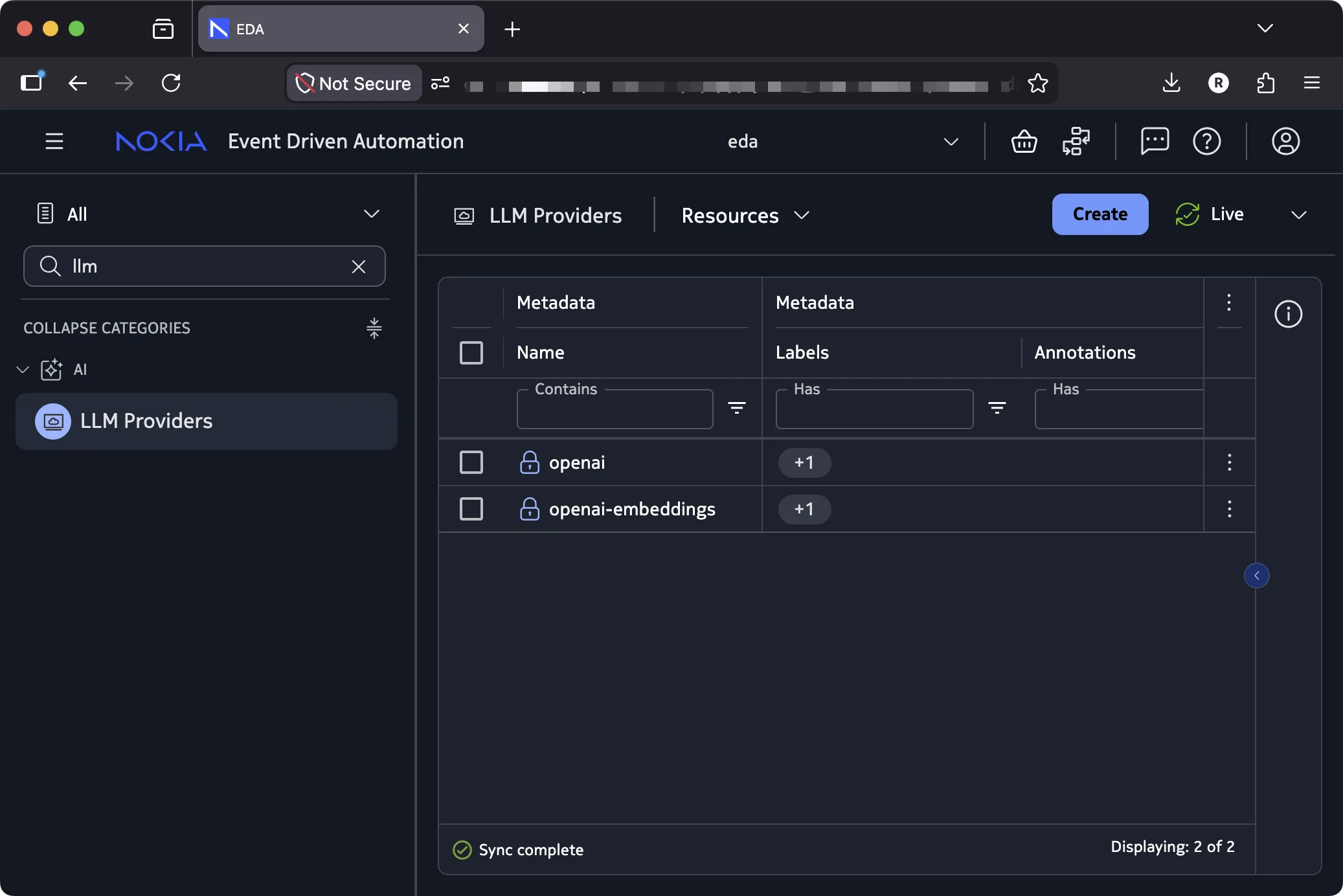
- You must have an OpenAI API key even when installing non-OpenAI LLM providers. This is required to support the embeddings model (
openai-embeddingsfrom the screenshot above), that is only available for the OpenAI provider.- In the current release, only one LLM application can be installed at a time.
Agents#
The following agents currently exist:
| Agent | Primary function | Typical invocation |
|---|---|---|
| Main | Orchestrates all user-initiated flows. | Default entry point for most queries. |
| Alarms | Root-cause analysis for alarms. | "Diagnose alarm InterfaceDown-leaf-1" or "What just happened?" |
| Query | Executes NQL → EQL translations. | “Can you show the subinterface names and their corresponding operational down reasons on leaf-1?” |
| Resources | Looks up network resources and their attributes. | “Is my fabric healthy?” |
| NetOps | Runs network-related operations. | "Ping leaf-1 from leaf-2" |
| Charts | Converts data queries into dashlets. | “Build a donut chart showing active alarms by severity.” |
Agents have access to their own tools, plus any tools tagged for them. For example the routing manifest contains a RouteLookup CRD that is tagged for the main and netops agents. This means that the RouteLookup workflow is exposed as a tool to the Main and NetOps agents.
apiVersion: core.eda.nokia.com/v1
kind: Manifest
metadata:
  name: routing
spec:
   # redacted for brevity
  components:
    - crd:
        path: routing/crds/routing.eda.nokia.com_routelookups.yaml
        workflow: true
        ui:
          name: Route Lookup
        ai:
          matchTags:
            - main
            - netops
Model selection options#
When you send a query, you can choose how the agent selects the underlying model:
- Auto: the tool or prompt selects whether to use a reasoning model or not.
- Standard: the called tool or prompt uses a non-reasoning model, if available. This model is for data retrieval or command execution.
- Reasoning: the called tool or prompt uses a reasoning model, if available. The reasoning model is typically used for analysis, synthesis, or explanation.
Using Ask EDA#
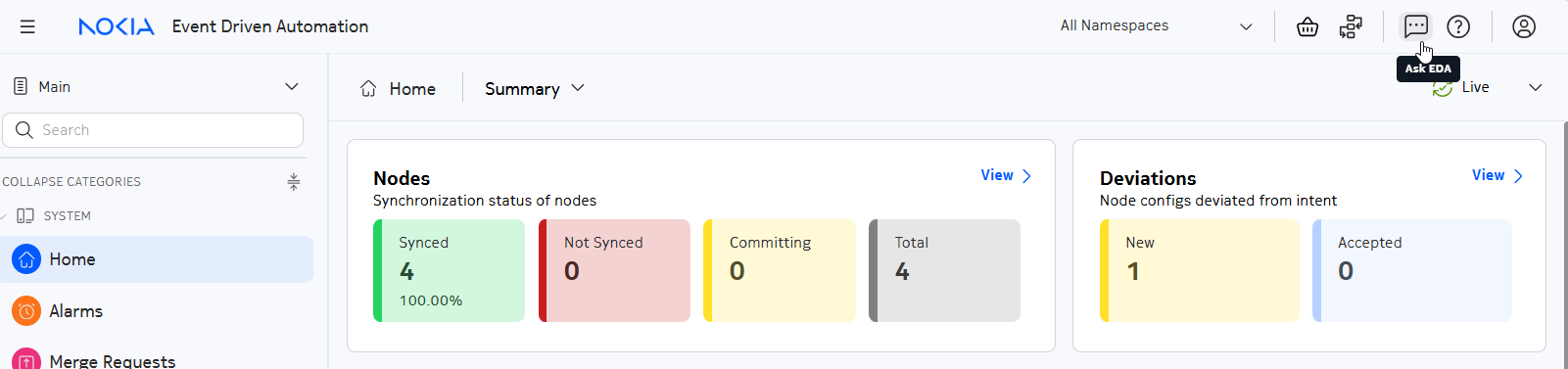
To access Ask EDA, click on the Ask EDA icon (a chat-bubble) in the top-right corner of any EDA UI screen.
When you click the Ask EDA icon, a chat panel opens, docked to the right of the screen.
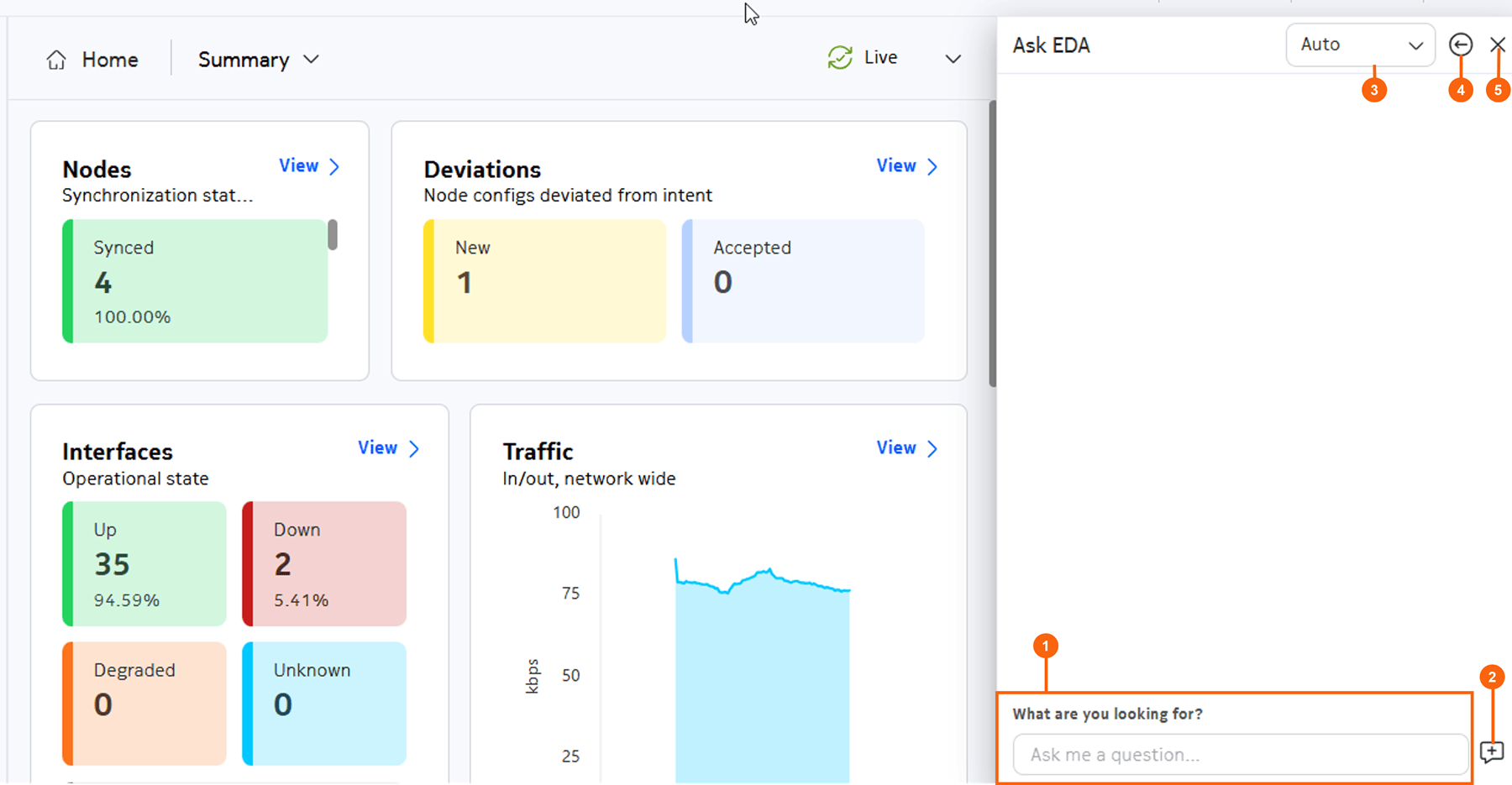
Table: Elements of the Ask EDA window
| # | Name | Function |
|---|---|---|
| 1 | Input bar | Enter queries here and press Enter on your keyboard. |
| 2 | Start new conversation icon | Click to start a new conversation. |
| 3 | Model type drop-down list | Select from Auto, Reasoning, or Standard. |
| 4 | Full screen toggle | When the panel is docked, the Full screen icon is a left arrow. Click it to make the chat overlay the main view. In this mode, the Full screen icon is a right arrow; click it to dock the ASK EDA window. |
| 5 | X | Click to close the chat window. |
You can set up the Ask EDA chat window to display in one of the following modes:
- Docked mode: The chat occupies a pane on the right, leaving most of the EDA workspace available for other tasks.
- Full screen mode: Click the Full screen toggle to cover the main UI view with the chat.
Managing conversations#
When you first open Ask EDA, a new conversation is automatically created. When you make a query, Nokia EDA provides a default title for your conversation and the Open conversation history icon becomes visible; click it to display the conversation list.
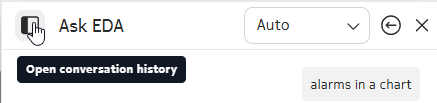
All active and completed conversations appear in the side-bar, ordered by most recent activity. Click a conversation to load its full chat history.

Conversations are stored as JSON files on disk in the AI engine pod. Each user is capped at 50 conversations, and the oldest conversation is evicted automatically when a new one would exceed the cap.
You can rename a conversation or delete it entirely.
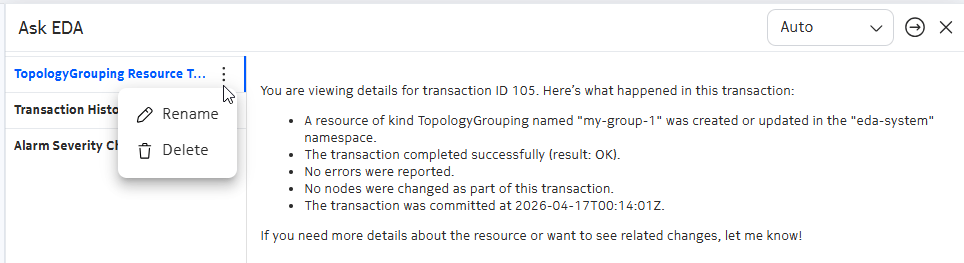
Click the action menu for a conversation and select one of the following actions:
- Click Rename to provide a new title. Then, click the check icon when you are finished.
- Click Delete to remove the conversation from the list.
Contextual help#
Currently, Ask EDA provides contextual help for transactions and alarms.
-
For alarms, a sparkle icon appears in the Alarm Details view. Click it to open Ask EDA with the alarm ID pre-populated. Ask EDA returns a root-cause analysis, suggested remediation steps, and links to related resources.
-
For transactions, a sparkle icon appears in the Transactions>Details view. When you click the sparkle icon, the Ask EDA panel displays the summary of changes, success/failure status, and, if failed, an explanation of error messages for the selected transaction.
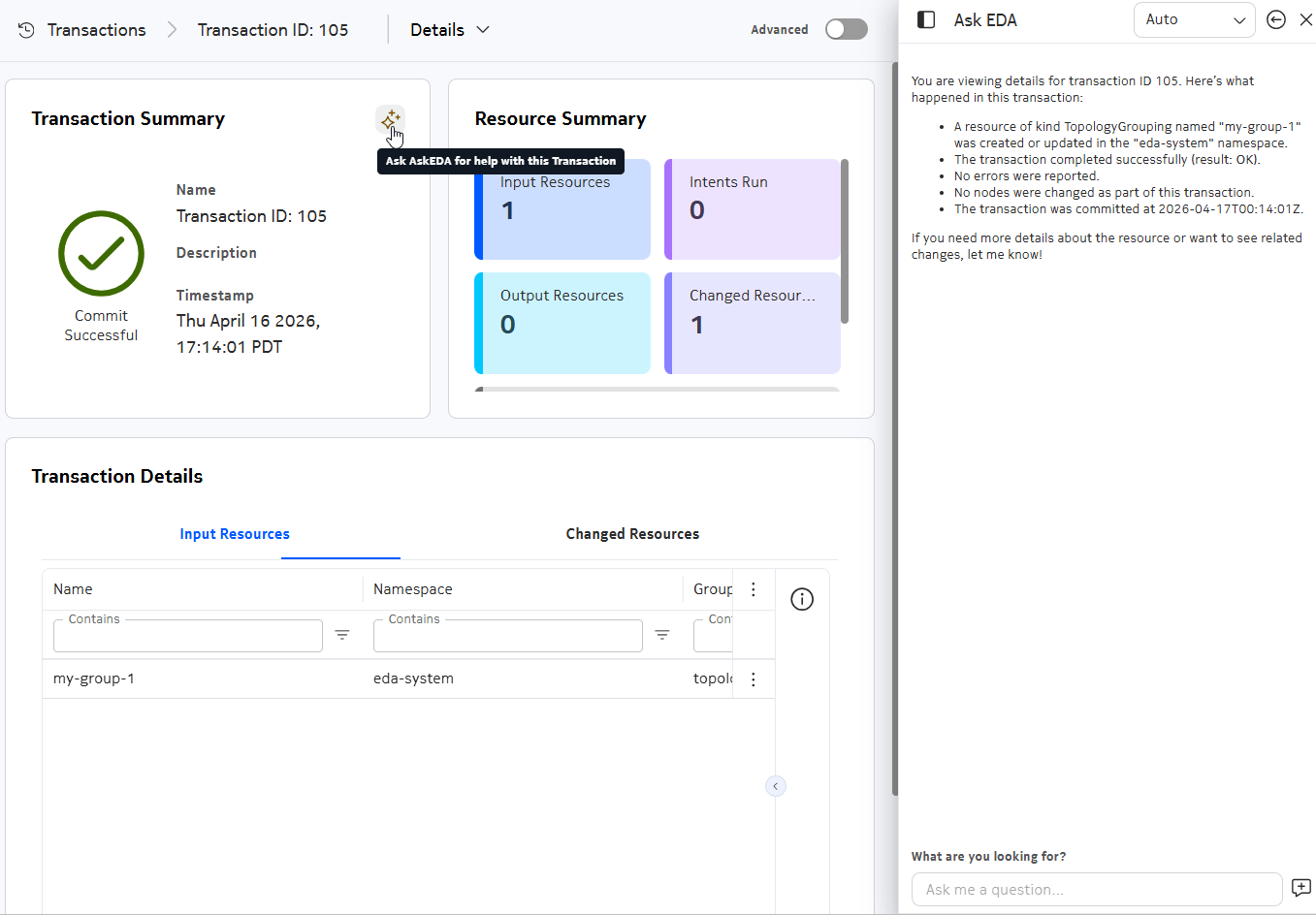
Transaction ASK EDA contextual help
Dashboard generation#
Ask EDA can help create dashboards by generating individual dashlets based on prompts that you provide; it can create the following types of dashlets:
- Donut/pie chart
- Bar chart
- Line chart
- Table
- Counter
Ask EDA can generate multiple types of dashlets from your prompt. If you do not provide a dashlet type, Ask EDA infers the most appropriate type of dashlet based on your requested data. If it cannot infer the dashlet type, it asks you to select one.
Once the dashlet is generated, you can drag and drop it in an opened dashboard designer view. For more information about how to build dashboards, see Dashboards.