Home page#
The Nokia EDA Home page is the first landing page for the Nokia EDA GUI. While some elements of the Home page are unique, it also includes a set of standard controls that are available from all pages within the Nokia EDA GUI.
The EDA Home page includes a drop-down that allows you to choose between two views:
- the Summary page (default), that displays status summaries for nodes, interfaces, and traffic as well as active alarms
- the Platform Status page, that displays summary information for the status of key Nokia EDA component
The Summary page#
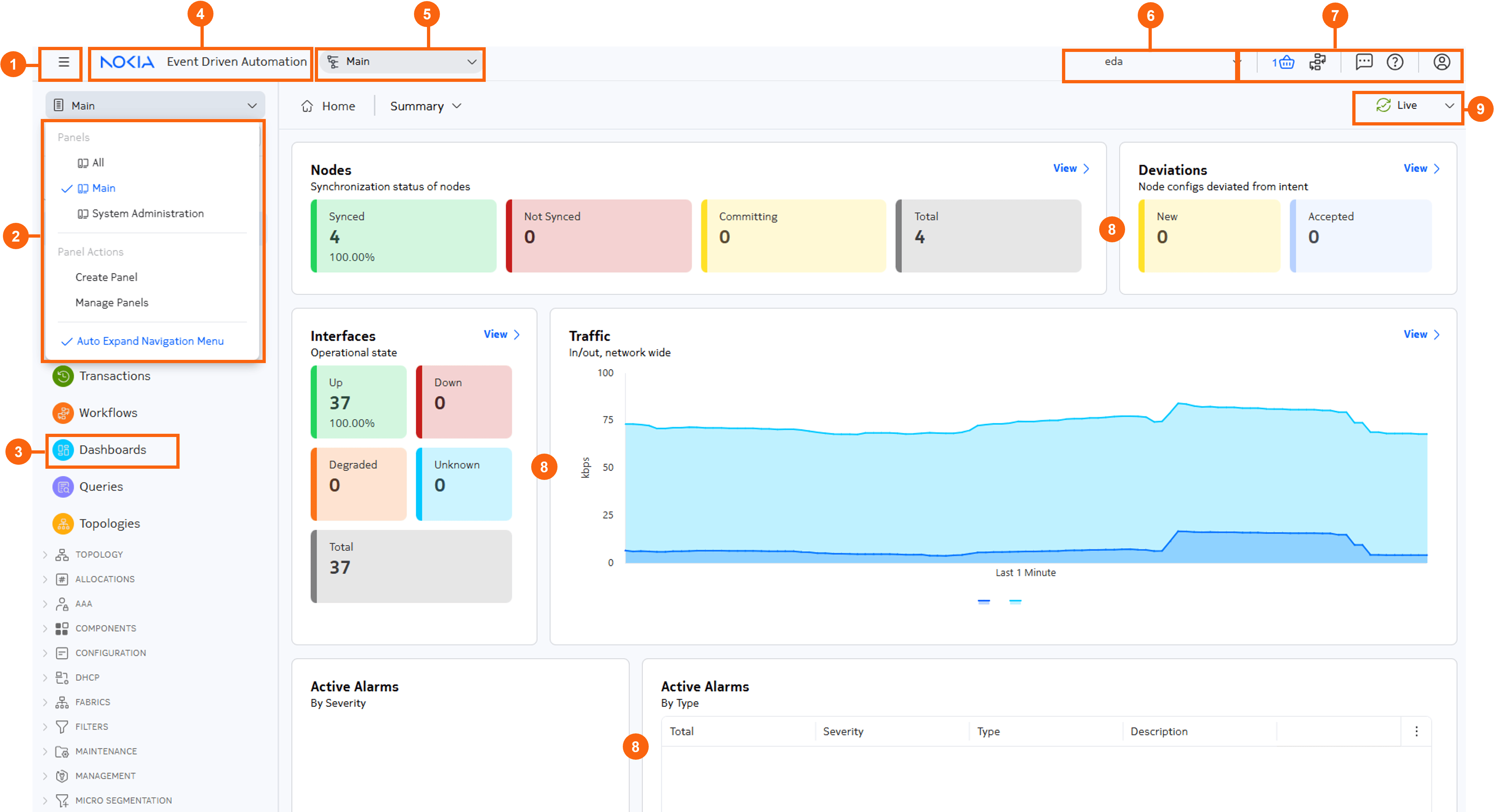
Table: Common elements on the Home page
| # | Name | Function |
|---|---|---|
| 1 | Menu pin/un-pin | Use this button to expand and pin, or collapse and hide, the main menu in the left column of the Nokia EDA GUI. |
| 2 | Menu controls | Use these tools to:
Note: Because Nokia EDA allows you to create your own custom navigation panels, additional panels may be available for selection here. These could be panels you have created yourself, or created by others and then published for sharing with other users. |
| 3 | Menu category | Click to expand or collapse a category to reveal or hide the individual links that are grouped within it. |
| 4 | Event Driven Automation Home button | Click here on any page of the Nokia EDA GUI to navigate to, or re-load, the Nokia EDA Home page. |
| 5 | Branch selector | This drop-down selector is visible only if branches are present in the system. Click to select a branch. |
| 6 | Namespace selector | Use this drop-down selector to choose a working namespace: either all namespaces, or one specific namespace. This selection affects the namespace from which to display data, and either create or manage resources. Note: The namespaces listed in the selector are limited to those namespaces that you have permission to access. |
| 7 | Common buttons |
|
| 8 | Dashlets | Each dashlet displays important information about the status of the Nokia EDA application and the network it is managing. Clicking the View link in any dashlet opens the Nokia EDA GUI page specific to that dashlet's information. |
| 9 | Live/Pause selector | Use this drop-down selector to start or pause streaming updates on all resource pages, including the following:
Clicking Pause pauses the stream of data which can be helpful for pages with high rates of change. Clicking Live resumes the streaming of data. |
The following default dashlets display on the Summary page:
-
Nodes: displays the synchronization state of the nodes known to Nokia EDA (total nodes: synced nodes and unsynced nodes).
Clicking the View link from this dashlet takes you to the Nodes list.
-
Deviations: displays the number of nodes that are configured in a way that differs from the last intent known to Nokia EDA. Separate counts are displays for those deviations that have been accepted (incorporated into the stored intent) and those that have been detected but have not been accepted.
Clicking the View link from this dashlet takes you to the Deviations list.
-
Interfaces: displays the operational state of the interfaces known to Nokia EDA (Up interfaces, Down interfaces, Degraded interfaces).
Clicking the View link from this dashlet takes you to the Interfaces list.
-
Traffic: displays total inbound and outbound traffic for the network as a whole.
Clicking the View link from this dashlet takes you to the Nokia EDA Query Builder, displaying the sum of in and out traffic rates for all nodes:
.namespace.node.srl.interface.traffic-rate fields [sum(in-bps), sum(out-bps)]. -
Active Alarms By Severity: displays all active alarms by severity.
- Active Alarms By Type: displays all active alarms by type.
The Platform Status page#
The second view available from the Home page of the Nokia EDA GUI is the Platform Status page.
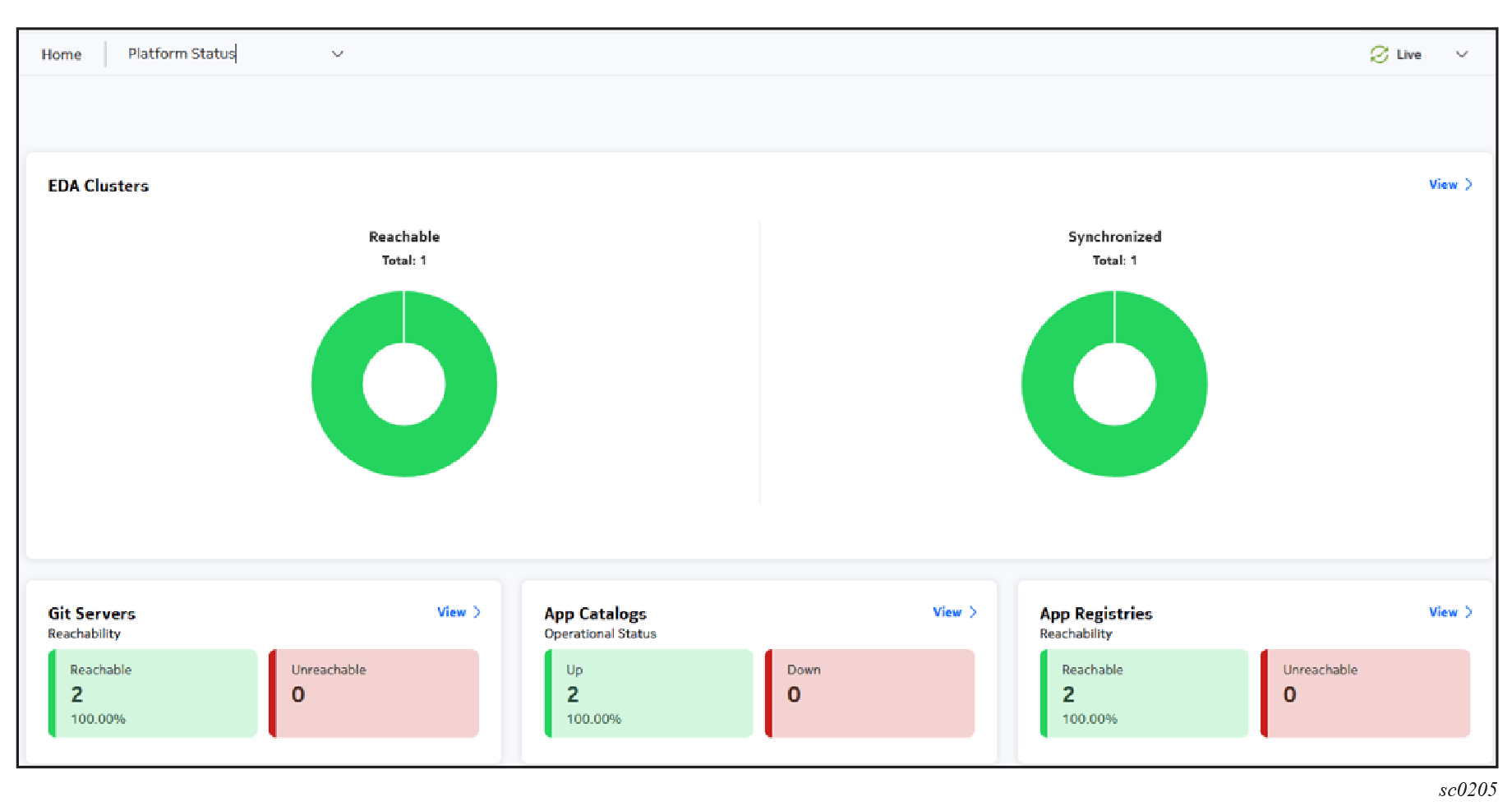
Clicking the View link from any dashlet opens the Alarms List.
Table: Elements of the Platform Status page
| Dashlet | Description |
|---|---|
| EDA clusters | When configured for Geographic Redundancy, Nokia EDA maintains separate instances on independent clusters so that the backup cluster can take over if the primary fails. The primary and backup Nokia EDA clusters regularly synchronize so that the latest data is still being used after a switchover to the backup cluster. This dashlet indicates whether clusters are reachable, and whether the reachable clusters are correctly synchronized. |
| Git servers | Shows the reachability status of Nokia EDA's Git servers. These servers are used for persistent storage of resources, installed apps, and user settings. |
| App catalogs | An app catalog is a structured Git repository that contains all information about an app, including where to find the app image containers. |
| App registries | An app registry is an OCI-compliant container registry, and contains the actual app image containers. |