Schema forms#
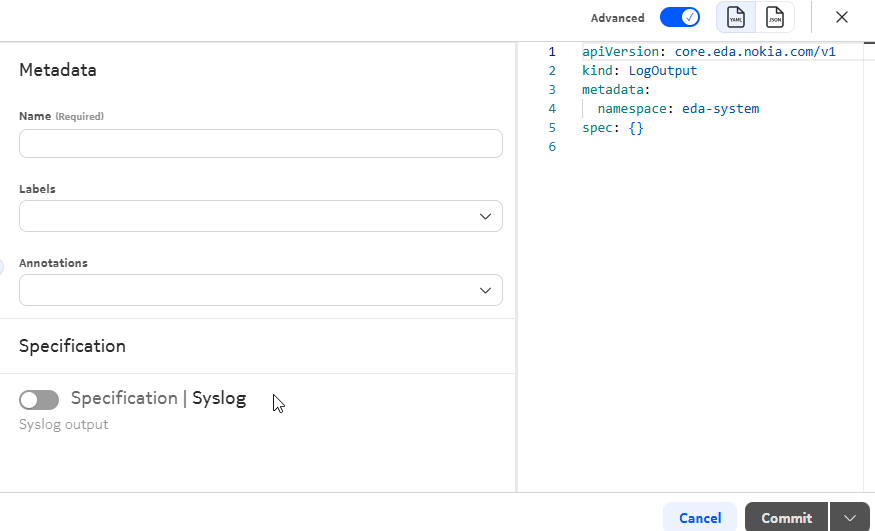
Schema forms allow you to create or edit a resource from the EDA UI instead of editing YAML files. This section highlights some features of the schema forms.
Split view panel#
When viewing resources and workflows in the Nokia EDA UI, The Split view panel displays the configuration information in either YAML or JSON format.
You can switch between YAML and JSON format by clicking the menu buttons. To hide the split view, click the active button.
Input selection from data grids#
For resource inputs fields (those which autocomplete a resource name) and query inputs fields (those with query type autocompletion), a data grid icon is visible beside the input field.
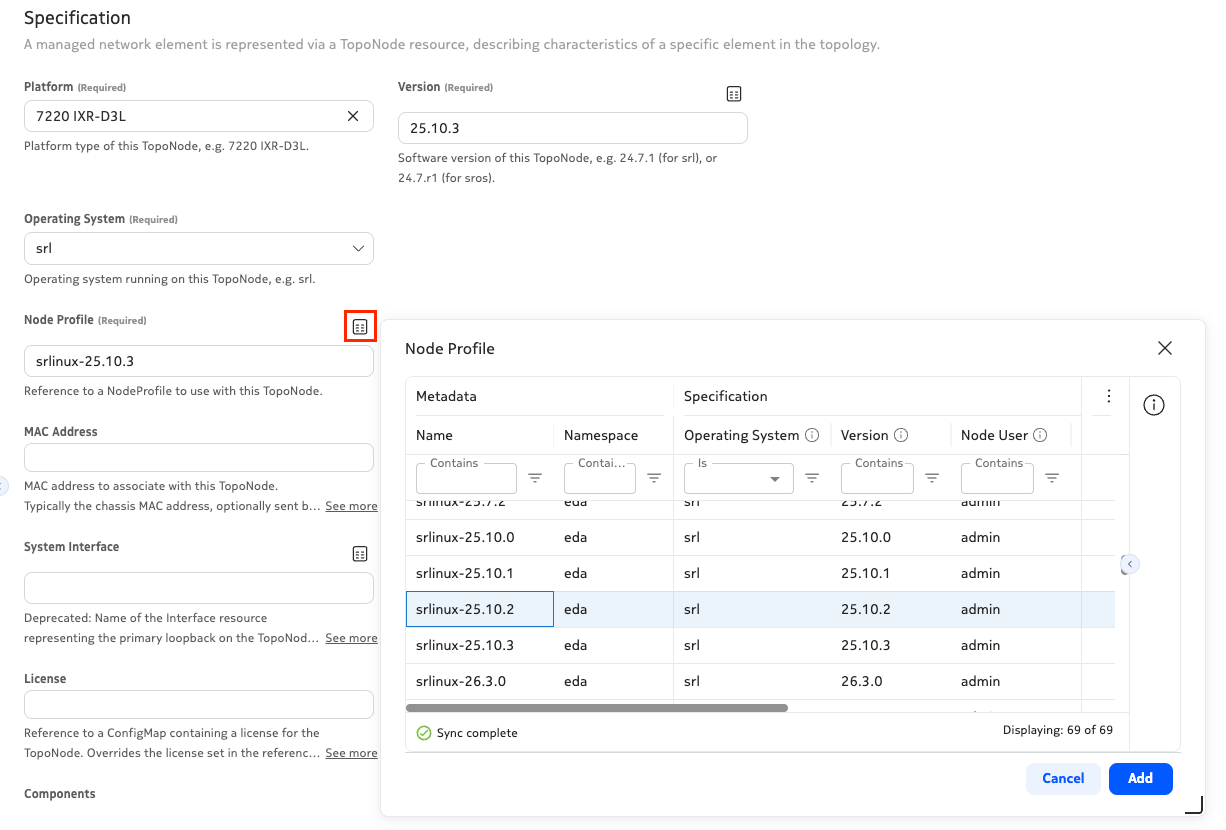
When you click on the data grid icon, a table opens that contains the relevant resources for that input field. In the example above, the data grid shows available Node Profile resources. You can use typical filtering mechanisms to refine the list from which you can select the resource(s).
Advanced toggle#
The Advanced toggle appears in upper right of the Nokia EDA UI schema form, when the resource definition includes advanced fields. This option allows you to toggle between viewing advanced fields on the page or limiting the view to the basic fields.