Merge requests#
In Nokia Event-Driven Automation (EDA), a merge request (MR) is a set of provisional resource configuration changes that is awaiting execution in the form of a transaction. If you are familiar with Git merge requests, then you will recognize the role of merge requests in Nokia EDA.
Note
The terms "merge request and "MR" are used interchangeably here.
There are two ways a set of provisional configurations requiring a merge request might arise in Nokia EDA:
-
users who have permission to propose changes to resource configurations, but without permissions to enact those changes themselves, can create an MR. The MR allows another operator with the necessary permissions to review the MR before proceeding with the merge.
-
if you are using Nokia EDA branches, there may be a branch that includes a collection of proposed configuration changes. The MR requests that all of the changes in that branch be written to the active system.
Note
The current release of Nokia EDA supports the creation of MRs, and the other actions described below. Nokia EDA does not yet support assigning specific reviewers or approvers to MRs.
Nokia EDA supports the following capabilities regarding merge requests:
- creating and deleting MRs
- listing MRs
- performing a dry run of an MR
- viewing diffs that clearly highlight the configuration changes within an MR
- merging an MR
- rebasing an MR
- handling three-way-merges to resolve conflicts arising from MRs
Merging#
An MR captures a set of configuration changes that are planned for one or more Nokia EDA-managed resources. When you proceed with the merge, or a dry run of that merge, Nokia EDA creates a new transaction and tries to enact the changes in the MR.
On any attempted merge or dry run, the Transaction ID of the resulting transaction is recorded in the MR.
Rebasing#
Because time will have passed between the creation of the merge request and its execution, it is possible that some aspects of the target resource configuration will have been changed by some other process during the interval.
When you perform a merge, Nokia EDA's ConfigEngine checks to see whether the expected "previous" state of the MR's target resources is valid, or if any of the target resources have since been altered.
If there are changes to the resources, but the changes are wholly separate from the changes in the MR, Nokia EDA will only require you to rebase the MR. Rebasing updates the "previous" resource configurations stored in the MR to match the current state. Then ConfigEngine tries to complete the requested merge.
Conflicts#
But if the intervening changes on a resource affect the same parts of its configuration that are being modified by the MR, then someone will need to examine these two competing sets of configuration changes, and manually decide which changes should prevail after the merge.
If a conflict is found, ConfigEngine updates the status of the request to Conflict, and the user must resolve all conflicts before the MR can be merged. The Nokia EDA GUI provides a three-way merge interface for resolving conflicts. This constitutes a merge between:
- The Previous configurations originally recorded in the MR when it was created
- The Proposed configuration changes included in the MR
- The actual Latest resource configuration in the live system, or "main" branch
Once these conflicts are resolved, you can proceed with the merge.
Merge failure#
If any merge request fails to merge, it persists in the merge request queue. This allows you to edit the MR to resolve any blocking issues, and retry the merge.
After a merge request is edited while in a Failed or Conflict state, Nokia EDA sets the merge requests back to the Open state.
If a merge request successfully merges, Nokia EDA updates its state to Merged.
Merge request data#
In Nokia EDA, a merge request schema includes the following data:
- The list of input resources, and their prior states. These prior states are stored so they can be checked against to see if a rebase or a three-way merge to resolve a conflict is required.
- A description that explains why the merge request was created. This is passed through to the transaction comment for consistency.
- The creation date
- The user who submitted the merge request
- The last modified date
- The user who last modificed the merge request
- The source branch, if the MR was triggered from a branch. ("self" if the MR was created from the main branch)
- The state of the MR
- A Transaction ID, corresponding to the most recent transaction that is related to the merge request
-
A history of actions performed on the MR
Note
Multiple transactions might be executed for an MR if, for example, you perform a dry run (which has its own TransactionId), or the MR fails initially, before you proceed with the final merge. The MR's Transaction ID field indicates the most recent transaction. Previous transaction IDs can be found in the MR's history.
The contents of merge request can be modified. When you choose to edit an MR from the Nokia EDA GUI, the resources will be added back into the Transaction Basket. From there you can edit the resources, add or remove resources, and then save the contents of the basket as the new content of the original MR.
Data storage and limits#
Nokia EDA retains MR data regardless of any restarts of the platform or ConfigEngine.
Nokia EDA stores up to 1,000 merge requests, including closed and merged MRs. The ConfigEngine rejects any new MRs beyond this limit. You can manually clean up the set of stored MRs using the Delete action.
Merge requests that are left inactive expire after a period of time; by default, this is 30 days. When the configured period has elapsed, the merge request is automatically deleted from the system.
Permissions#
The Nokia EDA user permission system includes a new verb, "propose", in the set of actions available for users and for which permission can be granted by an administrator. A user with "propose" permission can create merge requests and dry run resource changes, but such a user cannot proceed with the merge without write permission for those resources.
Merge requests are subject to the following permission requirements:
- Users can only see resources in a merge request if they have read permission to those resources.
- Users may not merge a merge request unless they have write permissions to all of the resources in the request.
- Users may not edit a merge request unless they have propose or write permission to all the resources in the request.
- Users may not close a merge request unless they have propose or write permission to all the resources in the request.
The ability to delete a merge request is governed by CusterRole UrlRule; it is a special admin permission, not based on resource permissions.
Merge requests using edactl#
You can interact with merge requests using edactl, the Nokia EDA CLI. Merge requests use the edactl mergerequest tree.
Without options, edactl mergerequest lists any Open, Merging, or Conflict merge requests.
If you include the --all option, the list includes all merge requests regardless of their state.
The edactl mergerequest command tree supports the following actions:
-
create: this generates a new merge request from a file or STDIN, similar to edactl create. If --idis provided, it updates an existing merge request. Optionally, --from-patchcan be provided to load a merge patch-file. Including--id <id>is mandatory in this case. -
apply: this generates a new merge request from a file or STDIN, similar toedactl apply. If--id <id>is provided, it updates an existing merge request. -
delete: this generates a new merge request from a file or STDIN, similar toedactl delete. If--id <id>is provided, it updates an existing merge request. -
patch: this generates a new merge request from a file or STDIN, similar toedactl patch. If--id <id>is provided, it updates an existing merge request. -
remove: this removes the given resource from the merge request. -
merge: this triggers the merge action, given a merge request ID. -
destroy: this deletes a merge request from the queue, given a merge request ID. -
dry-run: this dry runs a merge request, given a merge request ID. -
close: this closes a merge request, given a merge request ID. -
reopen: this reopens a closed a merge request, given a merge request ID.
These commands block further operations until they are complete.
Merge requests in the Nokia EDA GUI#
The Nokia EDA GUI includes several elements supporting merge requests:
The Transactions Basket includes an option to create a Merge Request, in addition to the Commit and Dry Run options. This create a new Merge Requests with the proposed resource changes. If the basket contains resources which the user has propose (but not write) permission, the Commit option will be unavailable.
The Merge Requests List displays a list of active and past merge requests. From this page you can choose to view the details of the merge request, edit the merge request (sending the proposed changes back to the Transactions Basket, perform a dry run, rebase, close, or delete the MR (subject to the necessary permissions).
The Merge Request Details page shows information about a single merge request. From this page you can merge an Open merge request, see a diff view of the configuration changes in the MR (compared to the "previous" state stored as part of the MR), rebase the MR if required, and resolve any conflicts that are blocking the MR.
The Merge Requests list#
The Merge Requests list shows a list of past and current merge requests, up to the 1,000 merge requests limit.
The columns displayed on this page are:
- ID: a unique ID for the merge request assigned by the system.
- State: one of the following states:
- Open: the MR is ready to be merged.
- Merging: the transaction to make the changes in the MR is in progress.
- Conflict: the transaction was attempted, but changes in the MR conflict with other changes to the same resources from another source.
- Merged: the transaction completed successfully.
- Failed: the transaction was attempted, but failed for some reason (not including conflicts).In this case the merge request persists in the system, allowing you to edit the MR to resolve the blocking change before trying to merge again.
- Closed: the MR has been set to the Closed state to make it inactive. It cannot be merged until it is re-opened.
- Description: an optional description explaining the purpose of the changes in the MR.
- Resource Count: the number of managed resources that would be, or were, affected by this MR.
- Created By: the Nokia EDA user account that created the MR.
- Last Modified By: the Nokia EDA user account that last modified the MR.
- Transaction ID: the ID of the most recent transaction associated with this MR, including any dry runs.
- Dry Run: indicates whether the transaction identified in Transaction ID was a dry run.
- Created: the date on which the MR was initially created.
- Last Modified: the date on which the MR was last modified. This date is the basis for deleting the MR record after a period of time (by default, 30 days).
- Activity: the number of records of activity in the log for this MR (for example, its creation, any edits, any merge attempts). Clicking on the link displayed in this column opens a form showing a list of the individual activities.
- Source: the entity that created the MR (for example: self, another user, or an app)
Row actions#
The following row actions are available for each item in the merge request list. Some actions require specific permissions.
-
Details: opens the Merge Request Details page for this MR.
-
Edit: Sends the contents of the merge request back to the Transactions basket. The resources are added to the Basket to join any other resources already there. You can then edit the individual resources, updating the requested changes, and then as usual select or un-select the resources in the basket for inclusion in the transaction. When you click Save, all of the selected resources in the basket replace those originally in the MR.
-
Dry Run: performs a dry run of the merge request, including any initial rebase required. This generates a dry run transaction whose diffs you can inspect to validate the MR. The dry run transaction ID is recorded as part of the MR.
-
Rebase: Updates the "previous" state of resources in the merge request to match their current state in the active, "main" branch. If the new information conflicts with the configuration changes that are part of the MR, this will trigger the Conflict state. Otherwise, the MR retains its current state.
-
Close: makes the MR inactive. The MR cannot be merged until it is re-opened.
-
Reopen: opens a Closed MR.
-
Delete: deletes the MR, regardless of its state. This can be useful in order to stay within the 1,000 limit for MR records.
Merge Request Details#
The Merge Request Details page displays information about a single transaction. It is also the view from which you can proceed with the requested merge.
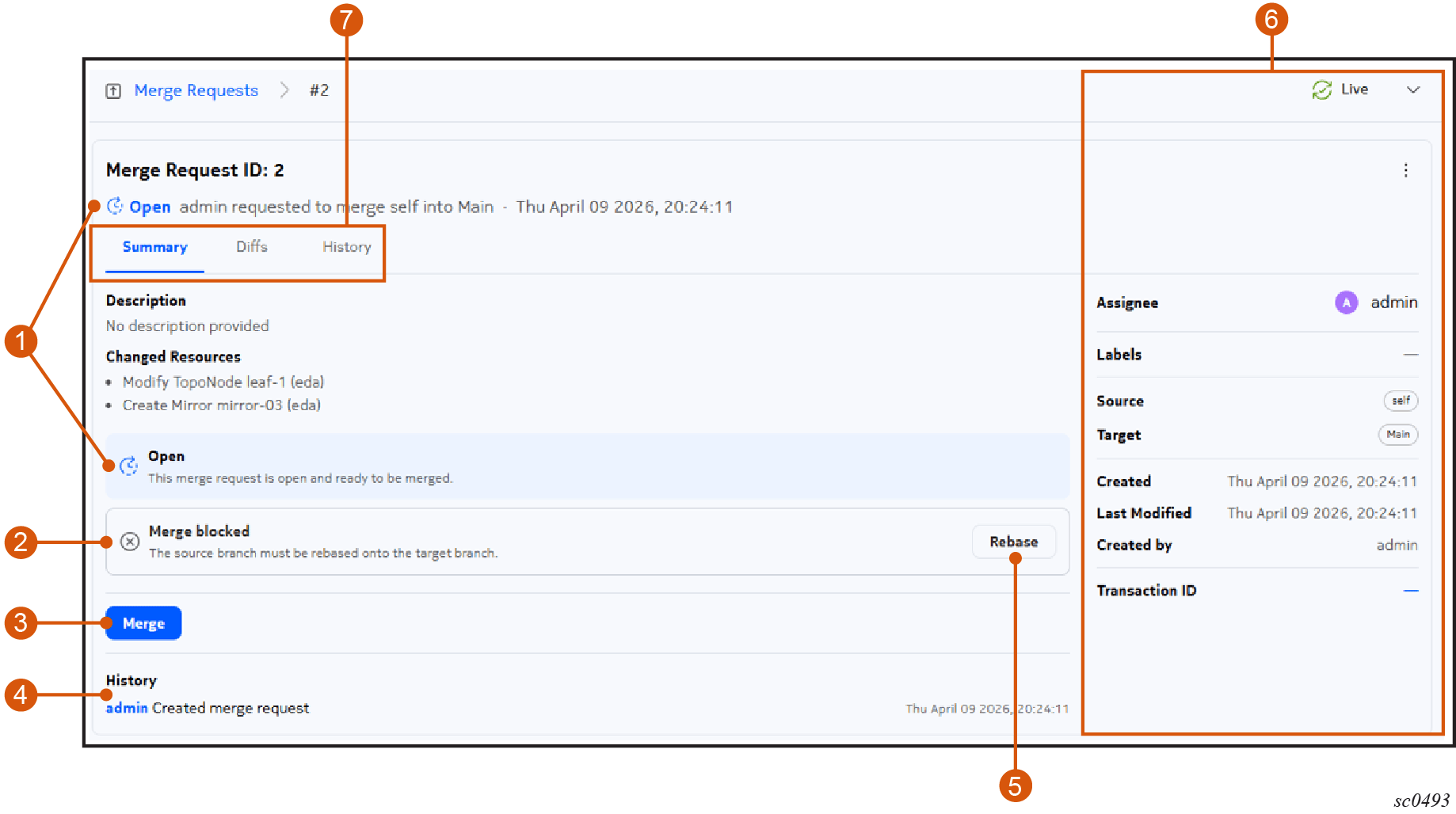
Table: Elements of the Merge Request Details page
| # | Name | Function |
|---|---|---|
| 1 | State indicators | Indicates the state of the MR. |
| 2 | View selector | Use to switch between available views for this MR. |
| 3 | Rebase panel. | If a rebase is required, the Rebase button will be blue (active). |
| 4 | Merge button. | Use this to proceed with the merge. This button will be gray (inactive) if circumstances preclude a merge (such as a pending rebase, conflict, or other merge failure requiring an edit of the MR). |
| 5 | Rebase button | Use to proceed with a rebase for the MR. |
| 6 | Information panel for the MR | Displays details regarding this MR. |
The following views are normally available from this page:
Summary#
The Summary view displays information about the MR including its current state, description, and a list of resources changed by the MR.
You can use the Rebase button to rebase an open MR.
You can use the Merge button to merge an open MR.
If there are conflicts, a Resolve conflicts button will display on this page.
Diffs#
The Diffs view shows the line-by-line changes to each resource included in the MR, including additions, deletions, and changes. You can use buttons on this page to view the diffs either side-by-side, or inline.
History#
The History view shows all of the actions taken for this MR, starting with its initial creation. Any changes, dry runs, edits, and the final merge are recorded here, including a description of the action, the user account that precipitated that action, and a time stamp.
Creating a merge request#
Follow these steps to create a new merge request:
Note
You must have write or propose permissions for all of the resources included in the merge request.
-
Create, modify, or delete one or more resources within Nokia EDA.
-
Select Add to Basket to save each configuration change to the Transaction Basket.
-
Open the Transaction Basket by clicking on the basket icon at the top of the Nokia EDA GUI.
-
(Optionally) Use the checkboxes at the left of each resource in the basket to include it in, or exclude it from, the merge request.
-
Click the drop-down beside the Commit button, and select Merge Request from the displayed options. If the basket contains resources which the user does not have write permission, the Commit option will be unavailable and Merge Request will be the primary action.
The set of selected resources and their configuration changes are saved as a new merge request.
Viewing a merge request#
Follow these steps to view a list of all merge requests, and optionally a detailed view of a single merge request:
Note
Nokia EDA stores the information for a maximum of 1,000 merge requests.
-
Use the Main navigation panel to select Merge Requests.
The Merge Requests List page opens, showing a list of merge requests, their states, and other information.
-
To view additional details about a single merge request, click the Table row actions icon for that row and select Details from the displayed list.
The Merge Request Details page opens for the selected merge request, including its state, whether it is blocked, and other information. From tihs view you can also proceed with the requested merge.
Editing a merge request#
You can edit the resource changes in a merge request by sending its contents back to the Transactions basket. In the basket, you can then add, remove, or modify resources and their configuration changes. When you choose Save in the updated basket, the contents of the basket are added to the original merge request.
You can edit a merge request that is in an Open, Conflcit, or Failed state.
You must have write or propose permissions for all resources within the merge request in order to edit the MR.
Follow these steps to edit a merge request:
-
Use the Main navigation panel to select Merge Requests.
The Merge Requests List page opens, showing a list of merge requests, their states, and other information.
-
Click the Table row actions icon and select Edit from the displayed list.
-
Click OK in the resulting confirmation dialog.
The resources and their changes in the MR are removed form the MR and added to the Transaction Basket.
-
If you want to add more configuration changes to the MR, configure new resource changes that were not part of the original MR use the Add to Basket action in the resource edit/create/delete forms.
-
Open the Basket by clicking the Basket icon at the top of the Nokia EDA UI.
-
In the Basket, do any of the following:
-
Edit a resource by selecting Edit from the actions menu for that resource.
-
Delete any of the resources in the basket by selecting the resource (using the check box to the left of the resource) and selecting Delete from the actions menu for that resource.
-
Select or un-select resources in the basket using the check boxes to the left of the resources. This will either include them in, or exclude them from, the updated merge request.
-
-
Click Save at the bottom of the basket.
The updated contents of the basket become the updated contents of the original merge request.
Closing, re-opening, or deleting a merge request#
You can use the row action menu from the Merge Requests List to close, re-open, or delete a merge request.
Closing a merge request renders it inactive without deleting it. A Closed merge request cannot be merged unless it is re-opened.
Deleting a merge request removes it from Nokia EDA entirely. Since Nokia EDA will only store information about 1,000 merge requests, deleting unnecessary MR records can help ensure that Nokia EDA retain records of those MRs you think are important.
Follow these steps to close, re-open, or delete a merge request:
-
Use the Main navigation panel to select Merge Requests.
The Merge Requests List page opens, showing a list of merge requests, their states, and other information.
-
Search for a merge request using standard data grid controls.
-
For that merge request in the list, click the Table row actions icon to reveal the set of actions available for that MR.
-
Do one of the following:
-
For an Open merge request, select Close to close it.
-
For a Closed merge request, select Reopen to re-open it.
-
For any merge request, select Delete to delete it.
-
-
Click OK in any resulting confirmation dialog.
Merging a merge request#
You must have write permissions for all the resource changes in the merge request.
Follow these steps to merge an MR:
-
Use the Main navigation panel to select Merge Requests.
The Merge Requests List page opens, showing a list of merge requests, their states, and other information.
-
Click the Table row actions icon and select Details from the displayed list.
The Merge Request Details page opens for the selected merge request, including its state, whether it is blocked, and other information.
-
(Optionally) Click the Rebase button to incorporate recent resource changes into the "previous" state saved in the MR, and check for any conflicts. If Rebase is skipped, the Merge action also will detect conflicts if they exists.
Note
If the rebase action reveals conflicts between the changes requested by the MR and the changes that have occurred since the MR's creation, the Conflict message displays on the Details view. You will need to resolve the conflict before you can proceed with the merge. Go to Resolving conflicts in a merge request.
-
Click Merge.
A message displays indicating that the merge is in progress. When complete, the page displays a "Merged" message and displays the ID of the transaction that enacted the changes.
If instead the merge encounters an error, a message will display and the state of the merge request will change to "Failed". View the transactions results to troubleshoot the issue before trying to merge again.
Resolving conflicts#
A merge conflict can arise when there have been changes to a resource that is the subject of the MR during the interval between the creation of the MR, and the merge. If the MR tries to change the same part of the resource configuration that was changed by another process during that interval, Nokia EDA flags this conflict and requires human intervention to decide how to reconcile the competing configurations.
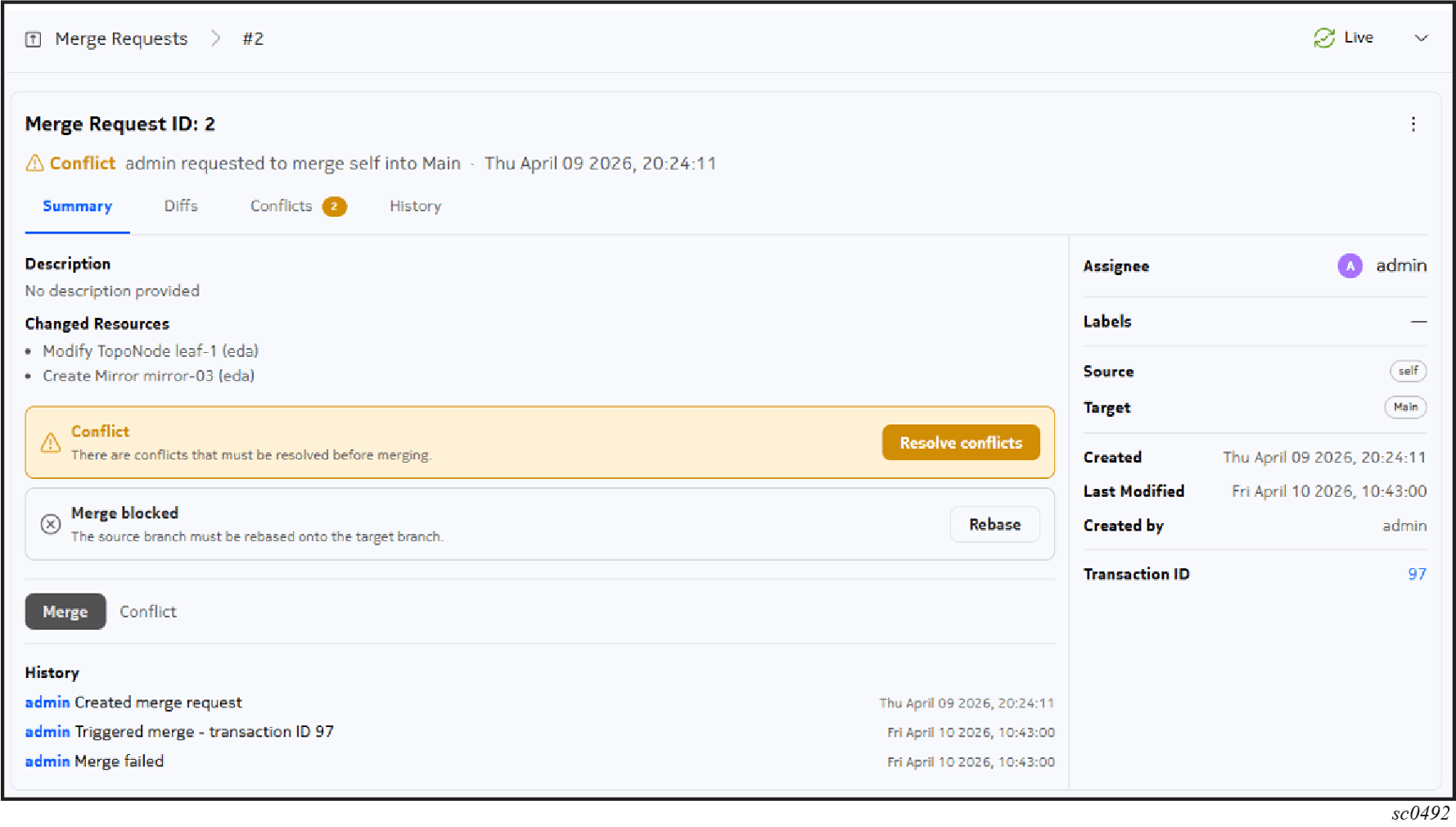
Resolving a merge conflict is called a "three-way merge" because it attempts to reconcile three things:
- the Previous version of the resources that is stored as part of the merge request. This is the configuration to which the MR expected to apply its changes. (in Git terminology this is call "base")
- the Proposed resource configuration changes requested by the MR
- the Latest version of the resource, currently running in the Nokia EDA system (in Git terminology this is call "head")
The result of this three-way merge is the new intended state after the MR applies its changes. This will reflect your choices when resolving the conflict (whether you chose the lines in "Proposed", those in "Latest", or a mixture of the two).
Follow these steps to resolve the conflict.
-
If it is not already open, open the Summary view for the merge request by doing the following:
-
Use the Main navigation panel to select Merge Requests.
-
Search for the merge request with the conflict using standard data grid controls.
-
Click the Table row actions icon and select Details from the displayed list.
-
-
In the Summary view for the merge request, click the Resolve conflicts button.
The Conflicts view displays.
In the Conflicts view, the current configuration of the resources are displayed beside the configuration intended for the same resources by the MR ("Proposed"). You can use the SIDE BY SIDE and INLINE buttons to switch between this and an inline view of both configurations.
All varying configurations, whether they conflict or merely differ, are highlighted in yellow.
-
For each resource, do the following:
-
To resolve individual conflicts for this resource choose either "Latest" or "Proposed" as the intended final state, click the Accept Latest or Accept Proposed for each conflicted section
You can change your selection by clicking undo
-
If there are multiple conflicts in the resource, you can choose Accept all from Latest or Accept all from Proposed to apply your choice to all conflicts in this resource
At any time, you can click the Reset button to undo all of your selections or the Reset All button reset all conflicting resources back to its original state.
-
-
After you have finished choosing between the conflicting configurations, click the Apply button to finish each resource and the "Finish Merge" button to save your selections back into the merge request.