Merge requests#
In Nokia Event-Driven Automation (EDA), a merge request (MR) is a set of provisional resource configuration changes that is awaiting execution in the form of a transaction. If you are familiar with merge requests in Git-based systems such as GitLab, then you will recognize the role of merge requests in Nokia EDA.
Note
The terms "merge request" and "MR" are used interchangeably here.
There are two ways a set of provisional configurations requiring a merge request might arise in Nokia EDA:
-
users who have permission to propose changes to resource configurations, but without permissions to enact those changes themselves, can create an MR. The MR allows another operator with the necessary permissions to review the MR before proceeding with the merge.
-
if you are using Nokia EDA branches, there may be a branch that includes a collection of proposed configuration changes. The MR requests that all of the changes in that branch be written to the active system.
Nokia EDA supports the following capabilities regarding merge requests:
- creating and deleting MRs
- setting a merge request as Draft to prevent merging
- removing the Draft setting to allow merging
- listing MRs
- performing a dry run of an MR
- viewing diffs that clearly highlight the configuration changes within an MR
- merging an MR
- rebasing an MR
- handling three-way merges to resolve conflicts arising from MRs
An administrator can also configure EDA to require approvals for all MRs, in which case the following actions are also enabled:
- approving an MR
- revoking approval
Merging#
An MR captures a set of configuration changes that are planned for one or more Nokia EDA-managed resources. When you proceed with the merge, or a dry run of that merge, Nokia EDA creates a new transaction and tries to enact the changes in the MR.
On any attempted merge or dry run, the Transaction ID of the resulting transaction is recorded in the MR.
Rebasing#
Because time will have passed between the creation of the merge request and its execution, it is possible that some aspects of the target resource configuration will have been changed by some other process during the interval.
When you perform a merge, Nokia EDA's ConfigEngine checks to see whether the expected "previous" state of the MR's target resources is valid, or if any of the target resources have since been altered.
If there are changes to the resources, but the changes are wholly separate from the changes in the MR, Nokia EDA will only require you to rebase the MR. Rebasing updates the "previous" resource configurations stored in the MR to match the current state. Then ConfigEngine tries to complete the requested merge.
Conflicts#
If intervening changes on a resource affect the same parts of its configuration that are being modified by the MR, then someone will need to examine these two competing sets of configuration changes, and manually decide which changes should prevail after the merge.
If a conflict is found, the user must resolve all conflicts before the MR can be merged. The Nokia EDA UI provides a three-way merge interface for resolving conflicts. This constitutes a merge between:
- The Previous configurations originally recorded in the MR when it was created
- The Proposed configuration changes included in the MR
- The actual Latest resource configuration in the live system, or "main" branch
Once these conflicts are resolved, you can proceed with the merge.
Merge failure#
If any merge request fails to merge, it persists in the merge request queue. This allows you to edit the MR to resolve any blocking issues, and retry the merge.
After a merge request is edited while in a Failed state, Nokia EDA sets the merge request back to the Open state.
If a merge request successfully merges, Nokia EDA updates its state to Merged.
Merge request data#
In Nokia EDA, a merge request schema includes the following data:
- The list of input resources, and their prior states. These prior states are stored so they can be checked against to see if a rebase or a three-way merge to resolve a conflict is required.
- A description that explains why the merge request was created. This is passed through to the transaction comment for consistency.
- The creation date
- The user who submitted the merge request
- The last modified date
- The user who last modified the merge request
- The source branch, if the MR was triggered from a branch. ("self" if the MR was created from the main branch)
- The state of the MR
- A Transaction ID, corresponding to the most recent transaction that is related to the merge request
-
A history of actions performed on the MR
Note
Multiple transactions might be executed for an MR if, for example, you perform a dry run (which has its own Transaction ID), or the MR fails initially, before you proceed with the final merge. The MR's Transaction ID field indicates the most recent transaction. Previous transaction IDs can be found in the MR's history.
The contents of a merge request can be modified. When you choose to edit an MR from the Nokia EDA GUI, the resources will be added back into the Transactions basket. From there you can edit the resources, add or remove resources, and then save the contents of the basket as the new content of the original MR.
Data storage and limits#
Nokia EDA retains MR data regardless of any restarts of the platform or ConfigEngine.
Nokia EDA stores up to 1,000 merge requests, including closed and merged MRs. The ConfigEngine rejects any new MRs beyond this limit. You can manually clean up the set of stored MRs using the Delete action.
Merge requests that are left inactive expire after a configurable period of time. By default, this period is 30 days. When the configured period has elapsed without any modification to the MR, the MR is automatically and irrecoverably deleted from the system.
The expiry period for MRs is configured in the EngineConfig using .spec.mergeRequests.expireInactiveMinutes. This parameter holds an integer specifying the number of minutes of inactivity after which a merge request expires. The integer range is 1 to 525600 minutes (1 to 365 days). The default value is 43200 minutes (30 days).
Permissions#
The Nokia EDA user permission system includes the readPropose permission in the set of resource permissions that an administrator can grant to users (referred to here as the "propose" permission). A user with the propose permission can create merge requests and dry run resource changes, but such a user cannot proceed with the merge without write permission for those resources.
Merge requests are subject to the following permission requirements:
- Users can only see resources in a merge request if they have read permission to those resources.
- Users cannot merge a merge request unless they have write permission to all of the resources in the request.
- Users cannot edit a merge request unless they have propose or write permission to all the resources in the request.
- Users cannot close a merge request unless they have propose or write permission to all the resources in the request.
The ability to delete a merge request is a special administrative permission; it is not based on resource permissions. To delete merge requests, a user's role must include the mergerequest/delete core access item (in the coreAccessItems list of a Role or ClusterRole).
Approvals#
By default, merge requests in EDA do not require approval before a merge can proceed.
However, an EDA system administrator can configure a global setting that requires approval before any merge request can be merged. This setting is configured in the EngineConfig using the .spec.mergeRequests section, which contains the following fields:
.spec.mergeRequests.requireApproverCount: an integer (0–10, default 0) specifying the number of approvals required before an MR can be merged.
requireApproverCount | Approval required? | Who can merge? |
|---|---|---|
| 0 | No | A user with write permission to all resources in the request. |
| 1–10 | Yes | A user with write permission to all resources in the request, once the required number of approvals is present. |
.spec.mergeRequests.approverCondition: an enum controlling who qualifies as a valid approver. Possible values are:
WritePermission(default), meaning any user with write permission to all resources in the merge request can approve.WritePermissionNotRequestor, meaning any user with write permission to all resources in the merge request can approve, excluding the user who created the MR.
A user who qualifies as a valid approver under the configured approverCondition is said to have the approve permission.
EDA supports two approval actions on merge requests. Only a user with the approve permission can perform these actions.
-
Approve: this records the user's approval of the merge request. Approval does not imply that the merge request should be merged immediately. For example, a user may approve during business hours and schedule merging to occur during a maintenance window.
-
Clear Approval: removes the user's approval from the MR. This action is only available if the current user has already approved the merge request.
Two fields in the merge request status indicate the approval state:
-
The approval state of the request, in the
approvedboolean. This is set to false initially, and is set to true when any of the following conditions is met:- If
requireApproverCountis 0, once a single approver approves. - If
requireApproverCountis >= 1, once the correct number of approvers approves.
- If
-
The list of users who have approved the request, in the
approvedBylist.- When a user approves the merge request, their username is added to the list.
- When a user clears their approval, their username is removed from the list.
EDA records an activity entry on the MR whenever approval is given or cleared.
Note
Editing the contents of an MR clears all existing approvals. This includes rebase actions and conflict resolution.
Draft merge requests#
You can mark an MR as a draft in the EDA UI. An MR marked as a draft cannot be merged until the draft status is removed. Draft is an optional attribute of an MR; it is not a status.
Any MR can be marked as a draft, or have its draft status removed, after it has been created. The originator of the MR, or any user with write permissions to all resources in the MR, can set the draft field to true or false. Both setting and un-setting the draft option are accomplished using a Draft checkbox in the EDA UI, or using edactl.
An MR that is marked as a draft may not be merged, but all other actions that are appropriate for its status are available.
Merge requests using edactl#
You can interact with merge requests using edactl, the Nokia EDA CLI. Merge requests use the edactl mergerequest tree, or edactl mr in its short form.
Without options, edactl mergerequest lists all merge requests, regardless of their state. To display the details of a single merge request, specify its ID: edactl mergerequest <id>. When displaying a single merge request, you can add the --diff option to show a diff of the changes in the MR, or the --as-patch option to output the merge request as a patch file.
The edactl mergerequest command tree supports the following actions:
-
create: this creates a new merge request from a patch file specified with the--from-patchoption. Use the--descriptionoption to provide a description for the merge request. Optionally, use the--mergeoption to merge the new merge request immediately. -
apply: this adds resource configurations from a file or STDIN to a merge request, similar toedactl apply. If--id <id>is provided, it updates the existing merge request; otherwise it creates a new merge request. -
patch: this adds resource changes to a merge request using a JSON patch, similar toedactl patch. If--id <id>is provided, it updates the existing merge request; otherwise it creates a new merge request. -
delete: this adds resource deletions to a merge request, similar toedactl delete. If--id <id>is provided, it updates the existing merge request; otherwise it creates a new merge request. -
clear <id>: this removes the given resources from the merge request. Unlikedelete, which adds delete operations to a merge request,clearremoves resources from the merge request entirely.
-
draft <id>: sets an MR to draft. Using this command with the--clearoption clears the draft flag from the MR. -
approve <id>: records your approval of the merge request. Using this command with the--clearoption removes your approval (if present). -
merge <id>: this triggers the merge action for the specified merge request. -
dry-run <id>: this performs a dry run of the specified merge request. -
rebase <id>: this rebases the specified merge request against the current resource state, and displays a diff if any conflicts are found. -
destroy <id>: this deletes the specified merge request from the queue. -
close <id>: this closes the specified merge request. -
reopen <id>: this reopens the specified closed merge request.
The merge and dry-run actions (and create with the --merge option) do not return until the resulting transaction is complete. All other actions return as soon as the request is processed.
Merge requests in the Nokia EDA UI#
The Nokia EDA UI includes several elements supporting merge requests:
The Transactions basket includes an option to create a Merge Request, in addition to the Commit and Dry Run options. This creates a new merge request with the proposed resource changes. As part of creating an MR, you can mark the MR as draft; this will prevent it from being merged until the draft option is removed. If the basket contains resources for which you have propose (but not write) permission, the Commit option will be unavailable.
The Merge Requests List displays a list of active and past merge requests. From this page you can choose to view the details of the merge request, edit the merge request (sending the proposed changes back to the Transactions basket), perform a dry run, rebase, close, or delete the MR (subject to the necessary permissions).
The Merge Request Details page shows information about a single merge request. From this page you can merge an Open merge request, see a diff view of the configuration changes in the MR (compared to the "previous" state stored as part of the MR), rebase the MR if required, and resolve any conflicts that are blocking the MR.
The Merge Requests list#
The Merge Requests list shows a list of past and current merge requests, up to the limit of 1,000 merge requests.
The columns displayed on this page are:
- ID: a unique ID for the merge request assigned by the system.
- State: one of the following states:
- Open: the MR is active and can be reviewed, edited, and merged.
- Merging: the transaction to make the changes in the MR is in progress.
- DryRunning: a dry run transaction for the MR is in progress.
- Merged: the transaction completed successfully.
- Failed: the transaction was attempted, but failed for some reason (not including conflicts). In this case the merge request persists in the system, allowing you to edit the MR to resolve the blocking change before trying to merge again.
- DryRunFailed: a dry run of the MR was attempted, but the dry run transaction encountered an error. You can view the associated transaction results to troubleshoot before performing another dry run or proceeding with the merge.
- Closed: the MR has been set to the Closed state to make it inactive. It cannot be merged until it is re-opened.
- Draft: indicates whether this MR is marked as a draft, which prevents merging while true.
- Description: an optional description explaining the purpose of the changes in the MR.
- Resource Count: the number of managed resources that would be, or were, affected by this MR.
- Created By: the Nokia EDA user account that created the MR.
- Last Modified By: the Nokia EDA user account that last modified the MR.
- Transaction ID: the ID of the most recent transaction associated with this MR, including any dry runs.
- Dry Run: indicates whether the transaction identified in Transaction ID was a dry run.
- Created: the date on which the MR was initially created.
- Last Modified: the date on which the MR was last modified. This date is the basis for deleting the MR record after a period of time (by default, 30 days).
- Activity: the number of records of activity in the log for this MR (for example, its creation, any edits, any merge attempts). Clicking on the link displayed in this column opens a form showing a list of the individual activities.
- Source: the branch from which the MR originated. Displays "self" if the MR was created directly on the main branch.
Row actions#
The following row actions are available for each item in the merge request list. Some actions require specific permissions.
-
View: opens the Merge Request Details page for this MR.
-
Edit: sends the contents of the merge request back to the Transactions basket. Any resources already in the basket are removed, and any approvals on the MR are cleared; a confirmation dialog warns you before proceeding. You can then edit the individual resources, updating the requested changes, and then as usual select or un-select the resources in the basket for inclusion in the transaction. When you click Save, all of the selected resources in the basket replace those originally in the MR.
-
Dry Run: performs a dry run of the merge request, including any initial rebase required. This generates a dry run transaction whose diffs you can inspect to validate the MR. The dry run transaction ID is recorded as part of the MR.
-
Merge: attempts to merge the changes in the selected MR. Should this fail for any reason, open the MR details page to troubleshoot.
-
Approve: records your approval of the selected MR. This action requires the approve permission.
-
Clear Approval: revokes your approval of the selected MR.
-
Rebase: updates the "previous" state of resources in the merge request to match their current state in the active, "main" branch. If the new information conflicts with the configuration changes that are part of the MR, this will trigger a conflict.
-
Close: makes the MR inactive. The MR cannot be merged until it is re-opened.
-
Reopen: opens a Closed MR.
-
Delete: deletes the MR, regardless of its state. This can be useful in order to stay within the 1,000-record limit.
Merge Request Details#
The Merge Request Details page displays information about a single merge request. It is also the view from which you can proceed with the requested merge.
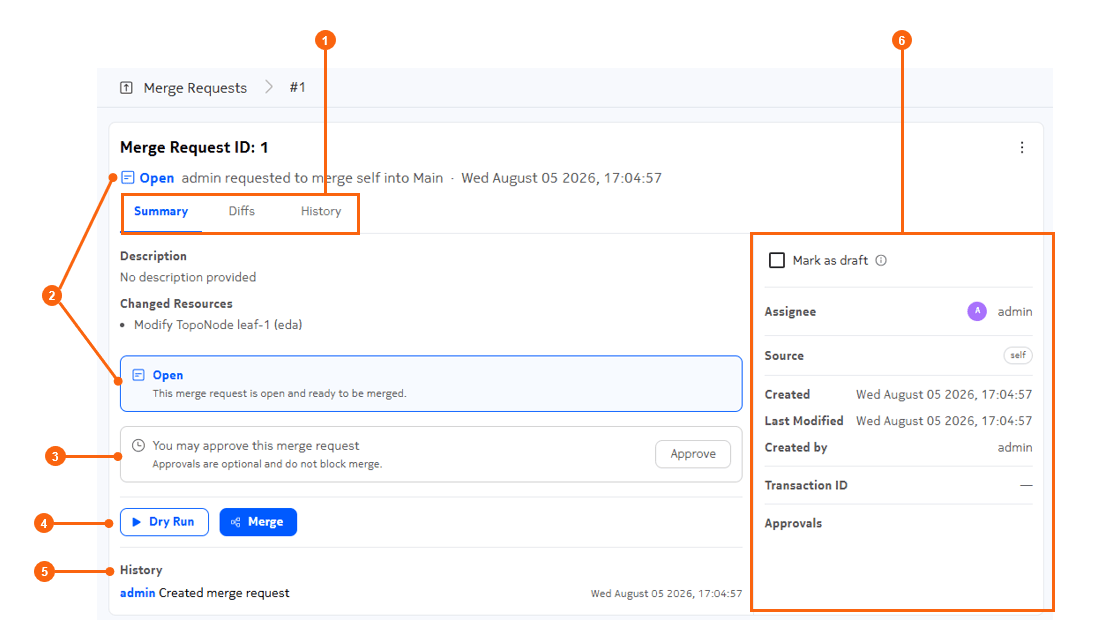
Table: Elements of the Merge Request Details page
| # | Name | Function |
|---|---|---|
| 1 | View selector | Use to switch between available views for this MR. |
| 2 | State indicators | Indicates the state of the MR. |
| 3 | Approve panel | Use the Approve button to approve the current MR, or to clear your approval. Approvals are only required before merging if this requirement has been generally configured by an administrator. |
| 4 | Merge and Dry Run buttons | Use these to proceed with the merge, or a dry run to test the merge. The Merge button is unavailable (grayed out) if circumstances preclude a merge (such as a pending rebase, conflict, or other merge failure requiring an edit of the MR). |
| 5 | The History panel | Contains a complete history of the actions taken with this merge request, including the user ID of the actor and a time stamp. |
| 6 | Information panel for the MR | Displays details regarding this MR. Includes the Draft checkbox, and displays who (if anyone) has indicated their approval for this MR. |
The following views are normally available from this page:
Summary#
The Summary view displays information about the MR including its current state, description, and a list of resources changed by the MR.
You can use the Rebase button to rebase an Open MR.
You can use the Merge button to merge an Open MR.
If there are conflicts, a Resolve conflicts button will display on this page.
Diffs#
The Diffs view shows the line-by-line changes to each resource included in the MR, including additions, deletions, and changes. You can use buttons on this page to view the diffs either side-by-side, or inline.
The Outline display in the left column allows you to navigate quickly to specific sections of the modified configurations within the Diffs view.
History#
The History view shows all of the actions taken for this MR, starting with its initial creation. Any changes, dry runs, edits, and the final merge are recorded here, including a description of the action, the user account that precipitated that action, and a time stamp.
Procedures#
Creating a merge request#
You create a merge request by first making changes to configurations in EDA, and then using the Transactions basket to bundle the changes into a merge request instead of committing them as part of a transaction immediately.
Follow these steps to create a new merge request:
Note
You must have write or propose permissions for all of the resources included in the merge request.
-
Create, modify, or delete one or more resources within Nokia EDA.
-
Select Add to Basket to save each configuration change to the Transactions basket.
-
Open the Transactions basket by clicking on the basket icon at the top of the Nokia EDA GUI.
-
(Optionally) Use the checkboxes at the left of each resource in the basket to include it in, or exclude it from, the merge request.
-
Click the drop-down beside the Commit button, and select Merge Request from the displayed options. If the basket contains resources for which you do not have write permission, the Commit option will be unavailable and Merge Request will be the primary action.
The set of selected resources and their configuration changes are saved as a new merge request.
Viewing a merge request#
Follow these steps to view a list of all merge requests, and optionally a detailed view of a single merge request:
Note
Nokia EDA stores the information for a maximum of 1,000 merge requests.
-
Use the Main navigation panel to select Merge Requests.
The Merge Requests List page opens, showing a list of merge requests, their states, and other information.
-
To view additional details about a single merge request, click the Table row actions icon for that row and select View from the displayed list.
The Merge Request Details page opens for the selected merge request, including its state, whether it is blocked, and other information. From this view you can also proceed with the requested merge.
Changing the resources included in a merge request#
You can modify the resource changes in a merge request by sending its contents back to the Transactions basket. In the basket, you can then add, remove, or modify resources and their configuration changes. When you choose Save in the updated basket, the contents of the basket replace the contents of the original merge request.
You can edit a merge request that is in an Open or Failed state.
You must have write or propose permissions for all resources within the merge request in order to edit the MR.
Follow these steps to edit a merge request:
-
Use the Main navigation panel to select Merge Requests.
The Merge Requests List page opens, showing a list of merge requests, their states, and other information.
-
Click the Table row actions icon and select Edit from the displayed list.
-
Click OK in the resulting confirmation dialog.
The resources and their changes in the MR are copied to the Transactions basket, replacing any resources already in the basket. The merge request itself is not changed until you save the basket.
-
If you want to add more configuration changes to the MR, configure new resource changes that were not part of the original MR and use the Add to Basket action in the resource edit/create/delete forms.
-
Open the Transactions basket by clicking the basket icon at the top of the Nokia EDA UI.
-
In the Transactions basket, do any of the following:
-
Edit a resource by selecting Edit from the actions menu for that resource.
-
Delete any of the resources in the basket by selecting the resource (using the checkbox to the left of the resource) and selecting Delete from the actions menu for that resource.
-
Select or un-select resources in the basket using the checkboxes to the left of the resources. This will either include them in, or exclude them from, the updated merge request.
-
-
Click Save at the bottom of the basket.
The updated contents of the basket become the updated contents of the original merge request.
Managing a merge request#
You can use the row action menu from the Merge Requests List to close, re-open, or delete a merge request. From the same menu you can approve the MR, or clear your approval. You can also mark a merge request as draft, or remove the draft designation, from the Merge Request Details page.
Closing a merge request renders it inactive without deleting it. A Closed merge request cannot be merged unless it is re-opened.
Deleting a merge request removes it from Nokia EDA entirely. Since Nokia EDA will only store information about 1,000 merge requests, deleting unnecessary MR records can help ensure that Nokia EDA retains records of those MRs you think are important.
Marking a merge request as a draft prevents it from being merged until the draft designation is removed.
Follow these steps to close, re-open, or delete a merge request, to approve it or revoke your approval, or to mark or un-mark it as draft:
-
Use the Main navigation panel to select Merge Requests.
The Merge Requests List page opens, showing a list of merge requests, their states, and other information.
-
Search for a merge request using standard data grid controls.
-
For that merge request in the list, click the Table row actions icon to reveal the set of actions available for that MR.
-
To close, reopen, or delete the MR, or to revoke your approval, do one of the following:
-
For an Open merge request, select Close to close it.
-
For a Closed merge request, select Reopen to re-open it.
-
For any merge request, select Delete to delete it.
-
For any merge request you previously approved, select Clear Approval.
-
Click OK in any resulting confirmation dialog.
-
To mark an MR as draft, or remove the draft designation, do the following:
-
Double-click the MR in the list to open the Merge Request Details page.
-
Check the Draft checkbox to mark the MR as draft, or un-check the box to remove the draft designation.
Approving a merge request#
When an EDA administrator has configured EDA to require approvals for MRs, you can use the row action menu from the Merge Requests List to approve the MR, or clear your approval.
The MR cannot be merged until the required approvals have been registered.
Follow these steps to approve a merge request:
-
Use the Main navigation panel to select Merge Requests.
The Merge Requests List page opens, showing a list of merge requests, their states, and other information.
-
Search for a merge request using standard data grid controls.
-
To approve the MR based solely on the information displayed in the list, do the following:
- For that merge request in the list, click the Table row actions icon to reveal the set of actions available for that MR.
-
Select Approve.
-
To review the MR details and then approve, do the following:
- Double-click the MR to open the Merge Request Details page.
- Review details about the MR in the Summary view.
- Switch to the Diffs view to see the specific changes the MR makes to one or more resource configurations.
- If you are satisfied, click Approve in the Summary view.
Merging a merge request#
You must have write permissions for all of the resources in the merge request. If approvals are required, the MR must also have the required number of approvals before it can be merged.
Follow these steps to merge an MR:
-
Use the Main navigation panel to select Merge Requests.
The Merge Requests List page opens, showing a list of merge requests, their states, and other information.
-
Click the Table row actions icon and select View from the displayed list.
The Merge Request Details page opens for the selected merge request, including its state, whether it is blocked, and other information.
-
If required, click the Rebase button to incorporate recent resource changes into the "previous" state saved in the MR, and check for any conflicts. If Rebase is skipped, the Merge action will also detect conflicts if they exist.
Note
If the rebase action reveals conflicts between the changes requested by the MR and the changes that have occurred since the MR's creation, a conflict message displays on the Merge Request Details page. You will need to resolve the conflict before you can proceed with the merge. See Resolving conflicts.
-
Optionally, perform a dry run of the MR by clicking Dry Run. This will test whether the MR will face any issues (such as conflicts), and provide you with an opportunity to resolve those issues before proceeding with the real merge.
-
To proceed with the merge click Merge.
A message displays indicating that the merge is in progress. When complete, the page displays a "Merged" message and the ID of the transaction that enacted the changes.
If instead the merge encounters an error, a message will display and the state of the merge request will change to "Failed". View the transaction results to troubleshoot the issue before trying to merge again.
Resolving conflicts#
A merge conflict can arise when a resource that is the subject of the MR is changed by another process during the interval between the creation of the MR and the merge. If the MR tries to change the same part of the resource configuration that was changed by another process during that interval, Nokia EDA flags this conflict and requires human intervention to decide how to reconcile the competing configurations.
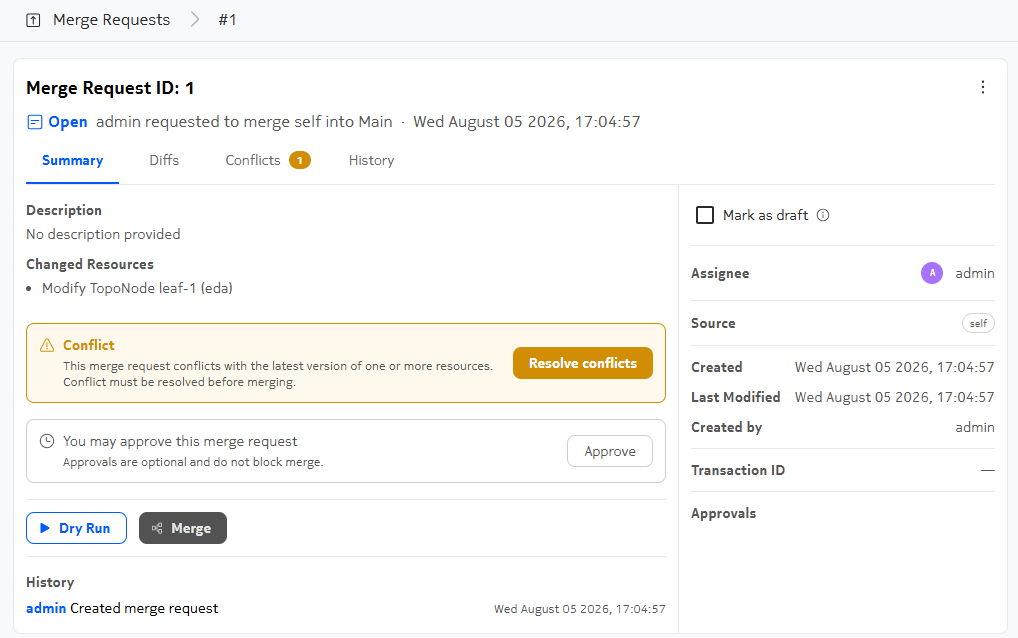
Resolving a merge conflict is called a "three-way merge" because it attempts to reconcile three things:
- the Previous version of the resources that is stored as part of the merge request. This is the configuration to which the MR expected to apply its changes. (in Git terminology this is called "base")
- the Proposed resource configuration changes requested by the MR
- the Latest version of the resource, currently running in the Nokia EDA system (in Git terminology this is called "head")
The result of this three-way merge is the new intended state after the MR applies its changes. This will reflect your choices when resolving the conflict (whether you chose the lines in "Proposed", those in "Latest", or a mixture of the two).
Follow these steps to resolve the conflicts:
-
If it is not already open, open the Summary view for the merge request by doing the following:
-
Use the Main navigation panel to select Merge Requests.
-
Search for the merge request with the conflict using standard data grid controls.
-
Click the Table row actions icon and select View from the displayed list.
-
-
In the Summary view for the merge request, click the Resolve conflicts button.
The Conflicts view displays.
In the Conflicts view, the current configuration of the resources is displayed beside the configuration intended for the same resources by the MR ("Proposed"). You can use the SIDE BY SIDE and INLINE buttons to switch between this and an inline view of both configurations.
All varying configurations, whether they conflict or merely differ, are highlighted in yellow.
-
For each resource, do the following:
-
To resolve individual conflicts for this resource and choose either "Latest" or "Proposed" as the intended final state, click Accept Latest or Accept Proposed for each conflicted section.
You can change your selection by clicking Undo.
-
If there are multiple conflicts in the resource, you can choose Accept all from Latest or Accept all from Proposed to apply your choice to all conflicts in this resource.
At any time, you can click the Reset button to undo all of your selections or the Reset All button to reset all conflicting resources back to their original states.
-
-
After you have finished choosing between the conflicting configurations, click Apply for each resource, and then click Finish Merge to save your selections back into the merge request.