Workflows#
The concept of a workflow is typically used in automation platforms to make an operational task reproducible; it is the logic or code required to execute the task. Workflows might perform node upgrades, validate connectivity in a virtual network, or perform a simple ping test.
In Nokia Event-Driven Automation (EDA), workflows are container images that take some input, perform some work, and provide some output. Like other Nokia EDA resources, the input and output schemas for EDA workflows are defined as Kubernetes CRDs. These workflow definitions and associated container images are packaged in Nokia EDA apps.
Nokia EDA workflows support:
- Runtime stages - reports the workflow's steps and their current state
- Workflow completion status
- Waiting for user input
- Subflows - a workflow can trigger child workflows
- Artifacts - a workflow may return artifacts, such as tech support files
- Log streaming - workflow container logs are retrievable via the Nokia EDA UI and API
Workflow state#
The success of a workflow run is represented by two parameters, state and passed.
State represents a workflow's lifecycle and has the following possible values:
- Waiting to start: FlowEngine is preparing the workflow run
- Running: the workflow is in progress
- Waiting for input: the workflow requires user input
- Subflow waiting for input: a subflow requires user input
- Terminated: the workflow stopped prematurely, typically by user intervention
- Failed: the workflow finished with an error
- Completed: the workflow finished without an error
Passed is a boolean value representing the domain-specific result of a finished workflow. Examples:
- If a Ping workflow executed all it's Internet Control Management Protocol (ICMP) requests, but did not received ICMP responses, the workflow state would be
Completedand passedFalse. - If the Ping workflow could not execute the ICMP requests, the workflow would return an error and would be state
Failedand passedFalse.
Note
Passed is used by the allowFailure condition in Pipeline jobs. When failure is allowed, the job is marked successful when the workflow state is Completed. When failure is not allowed, the job is marked successful if the workflow state is Completed and passed is True.
This is useful for pre-commit jobs when the workflow must complete without error, but the domain-specific result will be evaluated later as a comparison with a post-commit job.
FlowEngine#
Nokia EDA FlowEngine is the controller behind the instantiation, status reporting, and interaction with workflows.
When creating a new workflow, the FlowEngine:
- Validates the resources input against the schema.
- Publishes a Kubernetes
Job, which runs the container image associated with the workflow. - Assigns a Flow ID to the workflow.
- Updates the status of the flow based on gRPC interactions from the workflow container.
Flow IDs are incremental. If FlowEngine restarts, previously executed or currently running flows are lost and a new Flow ID restarts at 1.
Note
To avoid excessive memory use by FlowEngine, Nokia EDA enforces the following:
- Only 256 parent workflows are persisted.
- New workflows push out old workflows.
- There is a limit of 256 concurrently running workflows. New workflows are rejected if the system has reached this limit; actively running workflows are never dropped.
- Workflow history includes stages and logs. This history persists for the lifetime of FlowEngine. It does not persist and does not remain after a restart.
Workflows in the Nokia EDA UI#
Workflow Definitions #
The Workflow Definitions page shows all available workflow definitions provided from Nokia EDA apps. From the Main navigation panel, click Workflows under the SYSTEM group. Then, select Workflow Definitions from the drop-down list.
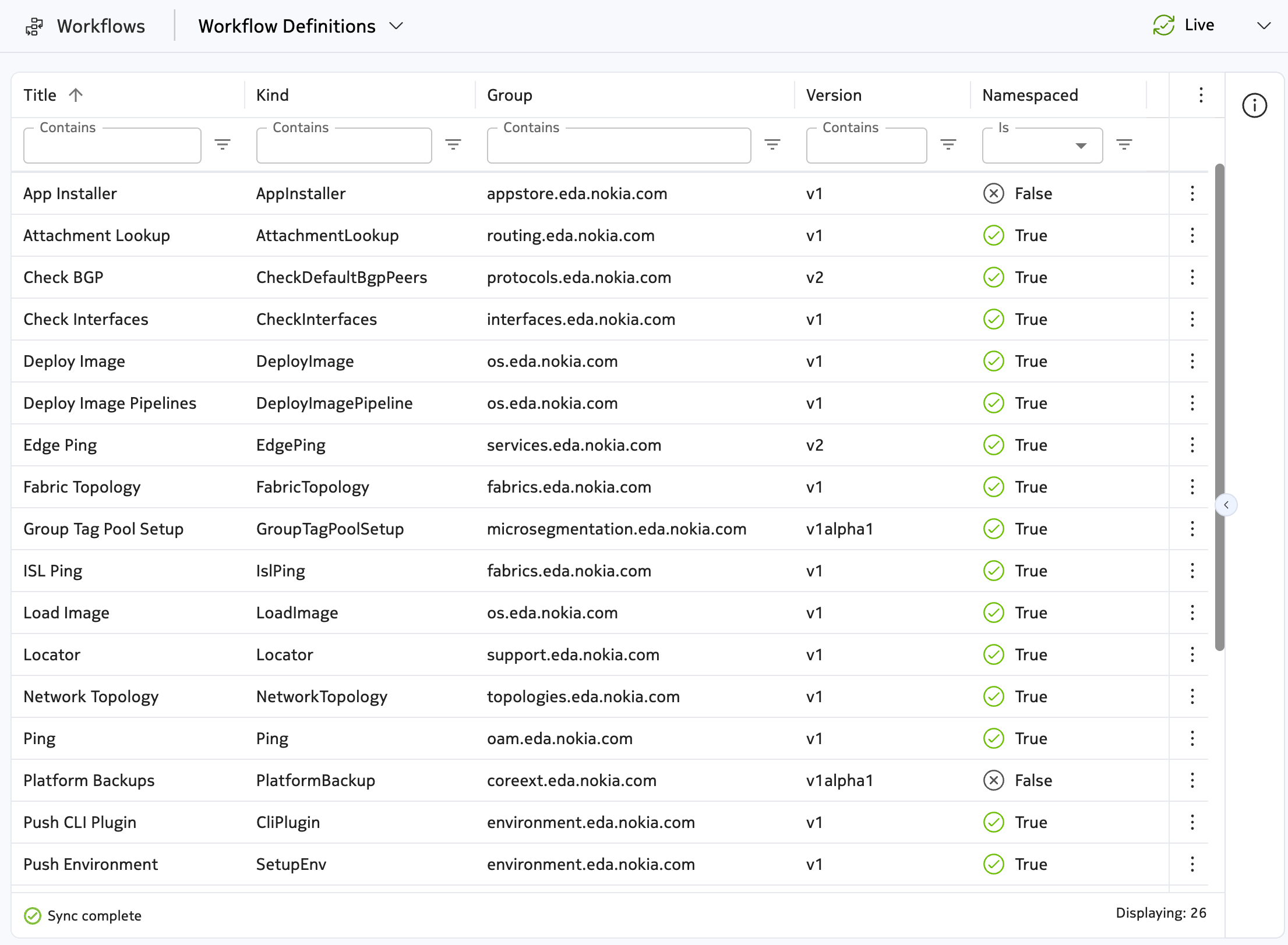
The following table summarizes some of the workflow definitions shipped with the Nokia EDA apps.
Table: Workflow definitions
| Workflow definition | App Name | Description |
|---|---|---|
| App Installer | EDA Store | Used to install or delete Nokia EDA apps. |
| Attachment Lookup | Routing | Used to look up attachments (where an address is attached in the network) on a set of nodes. The output shows the matching attachments, including the node, network instance, prefix, interface, and next hop group ID. |
| Check BGP | Protocols | Checks the state and status of the BGP peers that match the selection criteria. |
| Check Interfaces | Interfaces | Used to check the state and status of the matched nodes. Use interface selectors to select target interfaces on which to run this workflow. |
| Deploy Image | Operating System | Used to upgrade or downgrade software images on specified targets. It also supports tranches, which are groups of targets that can be upgraded together. By default, the system runs a set of checks before and after the image change; you can update this behavior by setting the Checks field. This workflow also supports canary nodes, which are used to test images before a broader rollout. Canary nodes are upgraded before any other targets. To identify the canary nodes, use node selectors that match labels on TopoNode resources, including those in the list of nodes to be imaged. |
| Deploy Image Pipeline | Operating System | Orchestrates image deployment as a distributed pipeline on specified targets. It also supports tranches, which are groups of targets that can be upgraded together. By default, the system runs a set of checks before and after the image change; you can update this behavior by setting the Checks field. This workflow also supports canary nodes, which are used to test images before a broader rollout. Canary nodes are upgraded before any other targets. To identify the canary nodes, use node selectors that match labels on TopoNode resources, including those in the list of nodes to be imaged. |
| Fabric Topology | Fabrics | Used to provide input to define a fabric topology. |
| Group Tag Pool Setup | Microsegmentation | Resizes the global and local Group Tag IndexAllocationPool resources (group-tag-pool-global and group-tag-pool-local) from which Group Tag IDs are allocated. Defines Global, Local, and Reserved index segments validated against 7220 IXR D2/D3 (max 127) and D4/D5 (max 16383) hardware limits. Refuses to apply a layout that would invalidate existing allocations; reserved segments can be held for future use. |
| Edge Ping | Services | Used to initiate a ping to an edge interface resource; specify a gateway or edge mesh. |
| ISL Ping | Fabrics | Used to ping inter-switch links (ISLs) to verify connectivity within a fabric. You can specify a list of fabrics, ISLs, or selectors for both to match ISLs. This workflow shows the results of the pings, including the status of each ISL. |
| Load Image | Operating System | Loads a software image onto specified targets. |
| Locator | Support | Typically used to guide on-site technicians to the correct target requiring maintenance; enables the LED locator for a target. |
| Network Topology | Topologies | Performs create, replace, and delete operations for topology resources. |
| Ping | OAM | Performs a ping to an address on a node or a set of nodes. |
| Platform Backups | CoreExt | Used to create and manage platform backups. |
| Push CLI Plugin | Environment | Used to push a CLI plug-in to a node. For SR Linux, the plug-in that you specify must include the .py extension, without leading slashes, for example, "myplugin.py". |
| Push Environment | Environment | Used to set up the global environment on a node. For SR Linux, this results in an overwrite of the /etc/opt/srlinux/env file. |
| RebootNode | Components | Reboots specified nodes. |
| Rotate Certificates | Bootstrap | Rotates certificates on specified targets. |
| Route Lookup | Routing | Used to look up routes on a set of nodes. The output shows the matching route and the set of ingress interfaces used to reach it. |
| Route Trace | Routing | Used to trace routes for specified targets. |
| System Ping | Routing | Used to initiate a system ping from a set of nodes to verify connectivity. |
| Tech Support | OAM | Generates technical support packages for a node or set of nodes; typically used for debugging. |
| TraceRoute | OAM | Performs a traceroute from a node or set of nodes to a destination address. |
| Workflow | Core | A generic workflow definition. This workflow is used by some workflows to create subflows without a predefined schema. |
| ZTP | Operating System | Performs zero-touch provisioning on specified targets, enabling nodes to bootstrap and download software, configuration, and other required artifacts. |
Workflow runs #
The Runs page lists the in-progress and historical workflow runs.
From the Main navigation panel, click Workflows under the SYSTEM group. Then, select Runs from the drop-down list. Rows are highlighted for any workflow which is failed or waiting for user input.
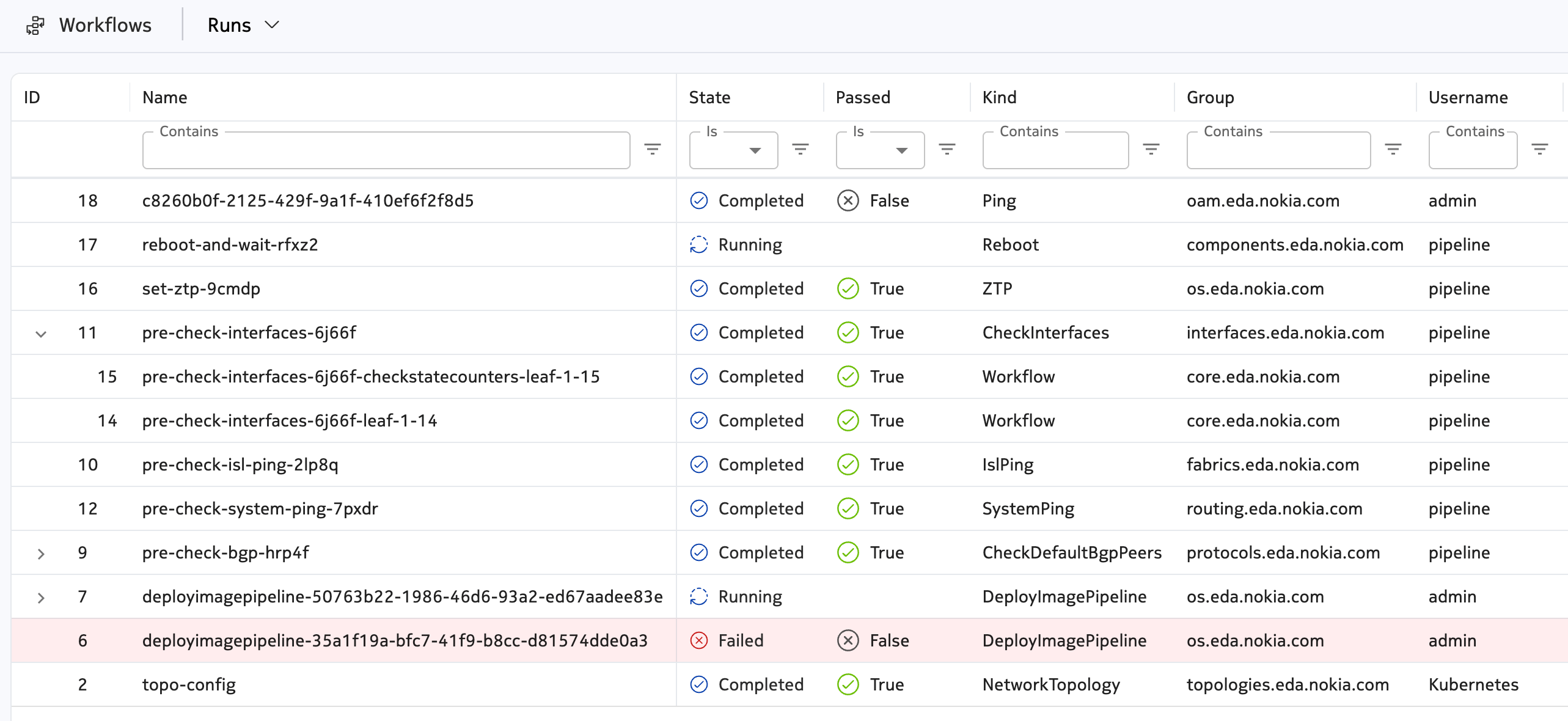
From the Runs page, you can:
- Provide additional input for a workflow, if user input is required
- Create and run a new workflow
- Cancel a running workflow
- Display the Summary page for a workflow
Double-click a workflow to display details for that workflow.
Subflows are nested under their parent workflow. Click the chevron icon near the parent workflow ID to show or hide the child workflows.
Workflow Summary page #
The Summary page provides details about a workflow execution. From the Runs page, click a workflow to display its summary.
The following example is for a NetworkTopology workflow.
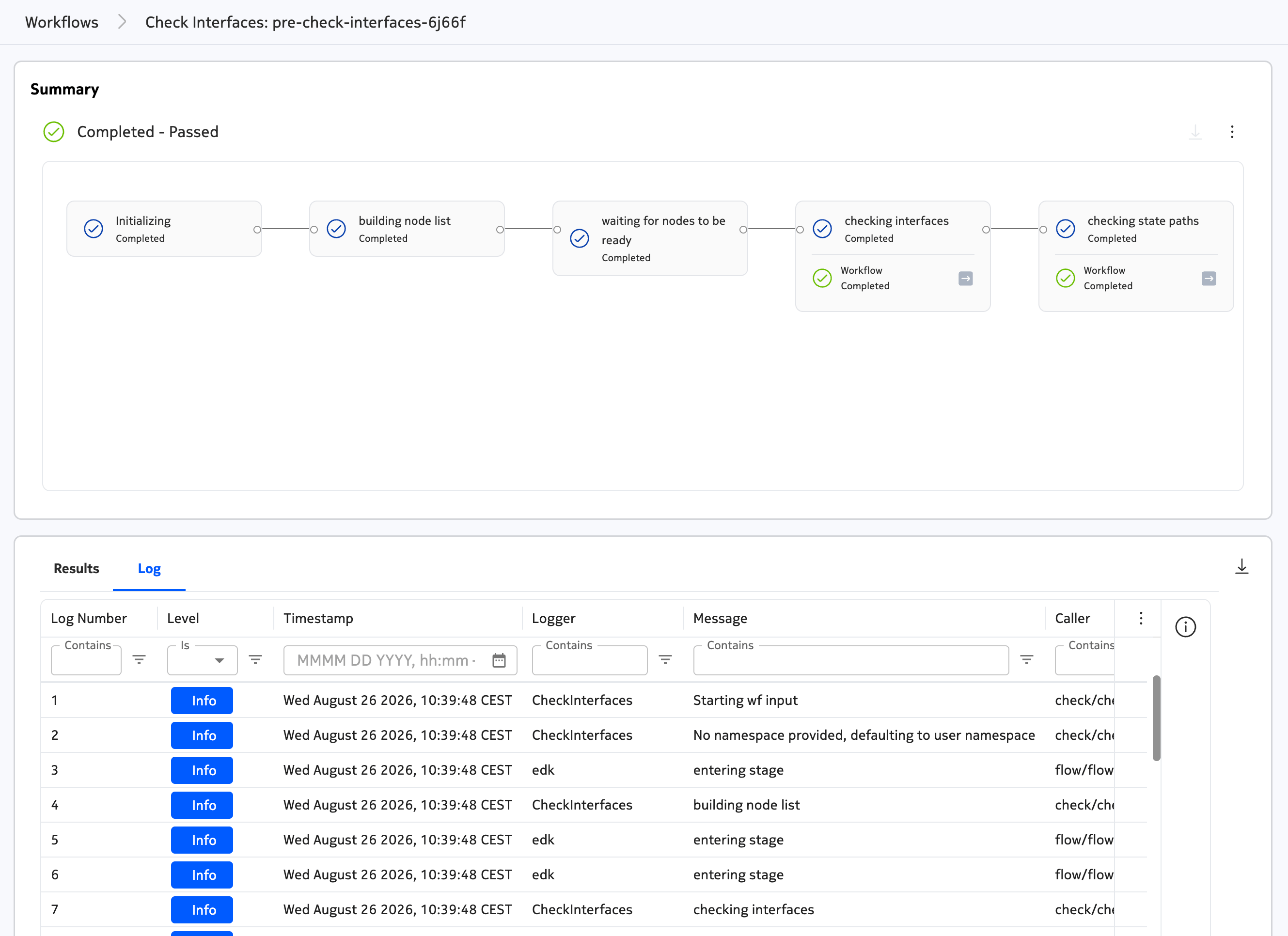
The Summary panel provides the state of the workflow.
- State of the workflow, which can be one of the following:
- Waiting to start
- Running
- Waiting for input
- Subflow waiting for input
- Terminated
- Failed
- Completed
For finished workflows (state Completed, Failed, or Terminated), the summary will also display the passed value as either "Failed" or "Passed".
Workflow results#
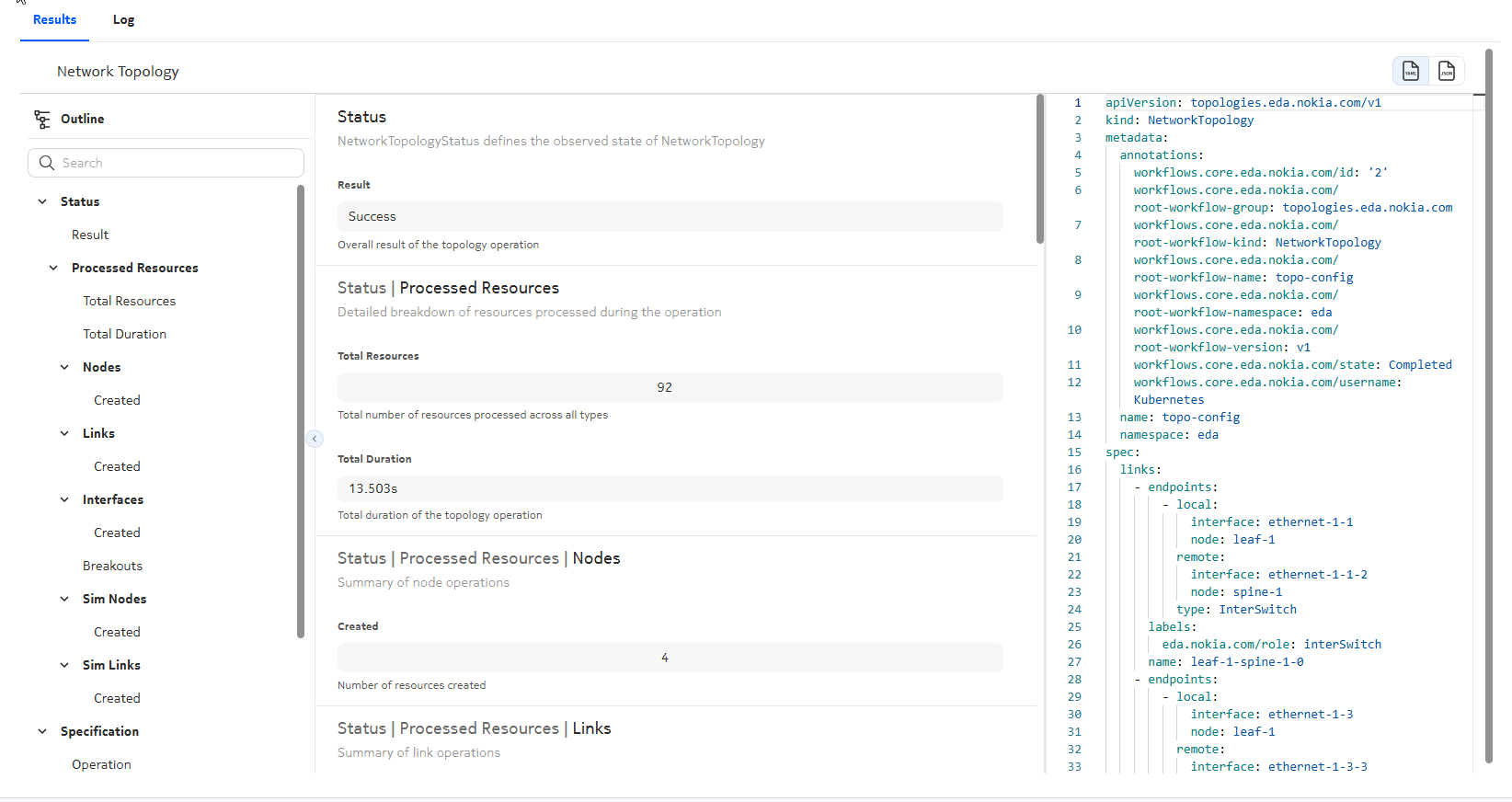
The Results tab displays the workflow run's input ("specification") and and output ("status"). The specification and status schema is unique to each workflow definition.
In the following example, a NetworkTopology workflow completed successfully. The results show the overall result, the total number of resources processed, the operation duration, and a breakdown of created resources by type (nodes, links, interfaces, and simulation resources). The code panel shows the underlying NetworkTopology resource definition.
Workflow logs#
The Logs view displays logs from the workflow container. Below the Summary panel, select the Log tab. The logs are used for troubleshooting and debugging purposes.
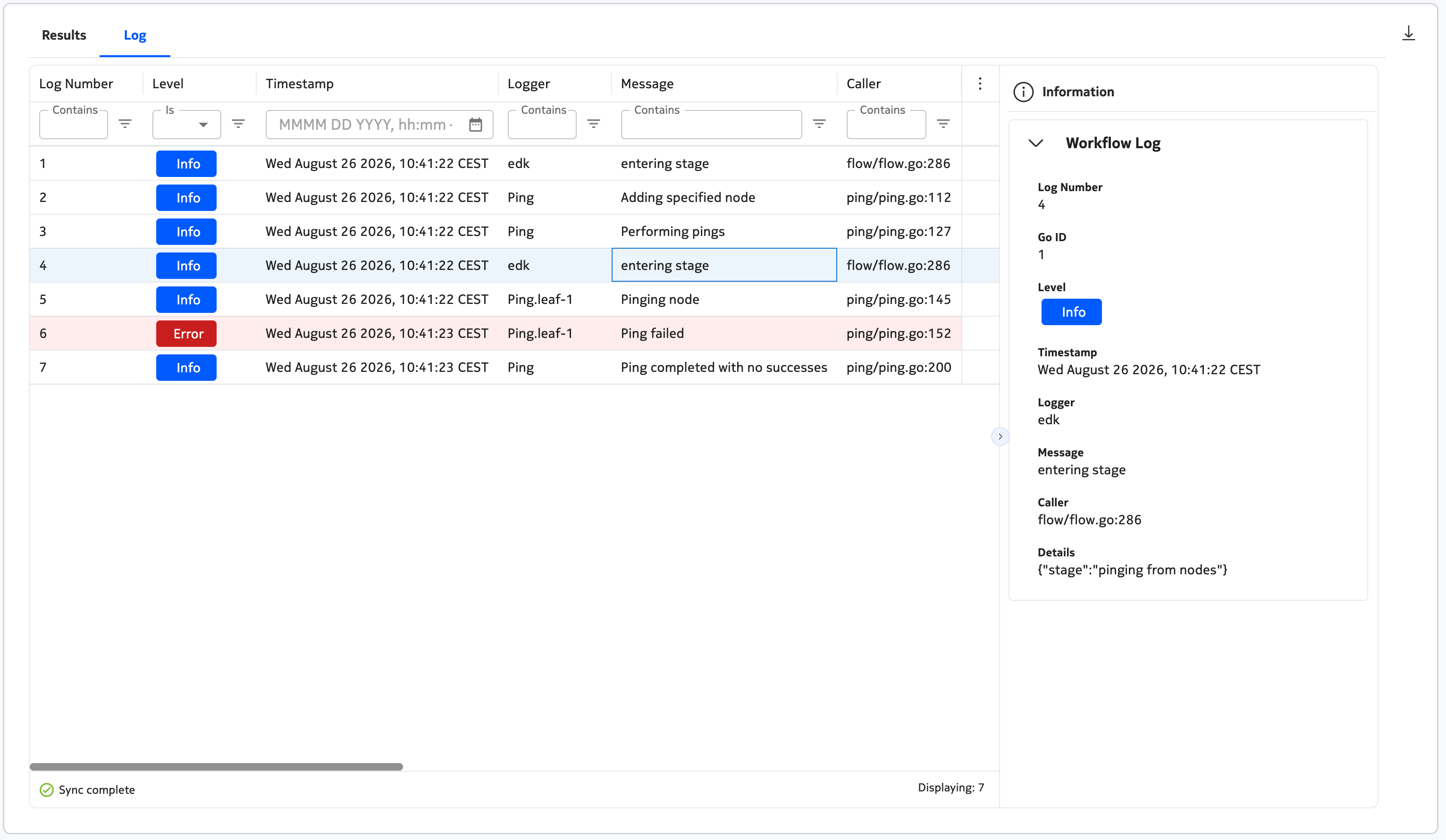
Table: Workflow log columns
| Column | Description |
|---|---|
| Level | The severity of the log entry. |
| Timestamp | The date and time when the log entry was recorded. |
| Logger | The component or function that produced the log entry. |
| Message | The log message text. |
| Caller | The source file and line number that generated the log entry. |
| Stacktrace | The stack trace associated with the log entry, if available. |
| Error | Error details associated with the log entry, if available. |
| Details | Additional details associated with the log entry, if available. |
Workflow artifacts#
The execution of some workflows produces artifacts that you can download. If a file is available for download, the download button is visible from the Summary panel. Click it to download the artifact and save the file locally.
Running workflows #
You can create a workflow using one of the following procedures:
- Running a workflow from the Workflow Definitions page
- Running a workflow from the Workflow Runs page
- Triggering a workflow from the resource action menu
Running a workflow from the Workflow Definitions page #
You can run a workflow by creating a new instance of the selected workflow definition.
Procedure
-
Select the workflow definition that you want to run by double-clicking it or clicking Run from the Table row actions icon.
-
In the form that displays, fill in the values for the workflow.
The contents of the form vary depending on the workflow definition that was selected. The Nokia EDA UI auto-generates a unique name for the workflow execution. You can override this name with a custom name.
-
Click Run.
Running a workflow from the Workflow Runs page #
You can create a new workflow by selecting the type of workflow that you want or by duplicating an existing workflow and updating the prepopulated specifications.
Procedure
-
From the Main navigation panel, click Workflows.
-
Click Runs from the Workflows drop-down list.
-
You can create a new workflow or duplicate an existing one.
-
Create a new workflow.
- Click Create.
- Select the workflow that you want to run from the drop-down list.
-
In the form that opens, enter the specifications for the workflow.
The contents of the form vary depending on the workflow definition that is selected. EDA auto-generates a unique name for the workflow execution. You can override this name with a name of your choice.
-
Duplicate an existing workflow.
-
Locate the workflow that you want to duplicate and click Duplicate from its Table row actions menu.
The prepopulated form displays.
-
Update the specifications for the workflow as needed.
-
-
-
When you are finished entering specifications for the workflow, click Run.
Triggering a workflow from the resource action menu #
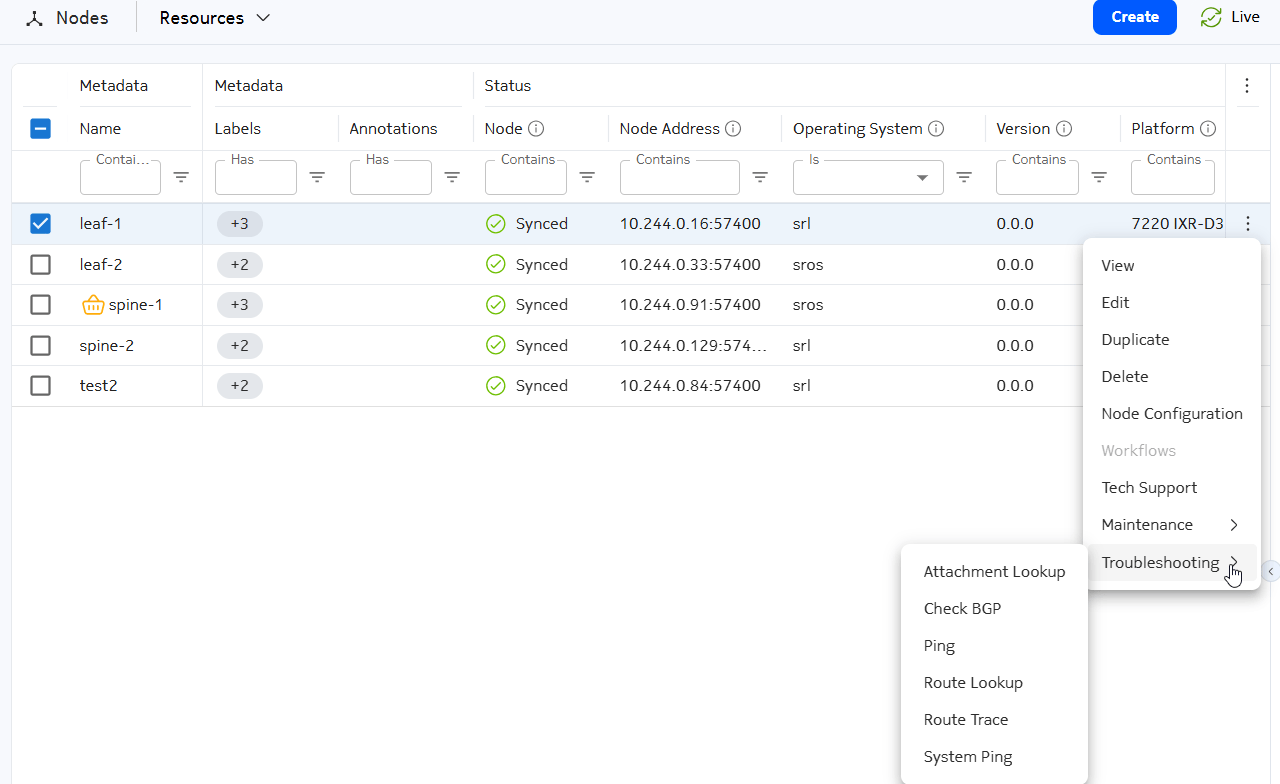
You can run a workflow from the Row action menu of target resources. Workflows are nested by UI category; if a workflow has no UI set, it remains at the top level under Workflows.
Workflow definitions define some types of resources as subjects. These workflows are listed in the action menu of the relevant resources. For example, the Ping workflow accepts a node as subject and can be triggered from the node action menu:
Some workflows allow you to select multiple resources in the same workflow. For example, for the Deploy Image workflow, you can identify multiple Node resources. You cannot include resources from multiple namespaces in the same workflow input. The bulk workflow actions function is disabled when the UI page is set to All Namespaces.
The following example executes the Ping workflow.
Procedure
-
From the Main navigation panel, under SYSTEM, click Nodes.
-
Select Resources from the drop-down list.
-
Locate the resource and click the Table row actions menu. From the drop-down list, click the Troubleshooting category, then select Ping.
-
In the form that opens, fill in the specifications for that workflow.
The contents of the form vary depending on the workflow definition that you selected.
-
Click Run.
Using workflows with edactl #
You can use the edactl command to provide input so a workflow can proceed or to query Nokia EDA about workflows.
Workflow status#
Use the following edactl commands to get a workflow's status:
-
To view all workflows, use the following command:
For example:
-
To view details of a specific workflow, use the following command:
For example:
Workflow logs#
Use the following edactl commands to get workflow logs:
-
To view logs for a workflow, use the following command:
For example: edactl workflow logs 20
-
To tail log output of a running workflow, use the following command:
Workflow artifacts#
Use the following edactl commands to get workflow artifacts:
-
To list files associated with a specific workflow, use the following command:
For example:
-
To download all files associated with the workflow in the present working directory, use the following command:
For example:
-
To download all the files associated with the workflow in the
/tmp/directory, use the following command:For example:
-
To download a single file associated with the workflow in the
/tmp/directory, use the following commands:or
For example:
Providing input to workflows#
Some workflows may require user input to allow the workflow to proceed. You can use the following commands to handle workflows that require user input:
-
To find workflows awaiting input, use the following command and look for status 'WAITING_FOR_INPUT':
-
To acknowledge a workflow and allow it to continue, use the following command:
For example, to acknowledge the workflow whose ID is 10:
-
To terminate a workflow, use the following command:
For example, to terminate the workflow whose ID is 20: